A theme demo is the fastest way to get a finished-looking site: import it, then swap the text and images for your own. When the import stops halfway, though, you can end up with half the pages, missing images and a menu that points nowhere.
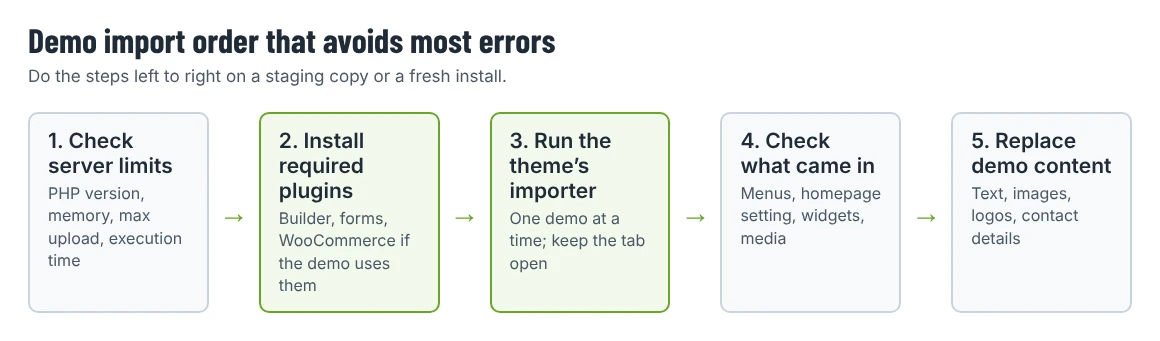
Most failed imports come down to three things: server limits, missing plugins and importing into a site that already has content. This guide covers what to check before you click Import, the order that avoids most problems, and what to do when something still goes wrong.
What a demo import actually brings in
Theme demo importers differ, but most of them bring some or all of the following:
- Content: pages, posts, custom post types (portfolio items, services, team members) and their images.
- Settings: the homepage and blog page assignment, menus and menu locations, widgets, theme options and Customizer settings.
- Page builder layouts: for Elementor-based themes, the page designs are stored with the pages themselves.
Many premium themes use a one-click importer built into the theme or a companion plugin. Under the hood, content usually travels as a WordPress export file (WXR, an XML format), the same format the official WordPress Importer plugin reads. Settings travel in separate files, which is why a manual XML import alone often looks “wrong”: the content is there, the settings are not.
Always follow your theme’s own documentation when it describes a specific importer or order of steps.
Before you import: four checks
1. Use a fresh site or a staging copy
Importing a demo into a site that already has content mixes the two: you may end up with duplicate pages, a second “Home” page or a replaced menu. Import on a new installation or a staging copy, then move your content over. If the site is already live, take a full backup of files and database first.
2. Check your server limits
Go to Tools › Site Health › Info and open the Server section:
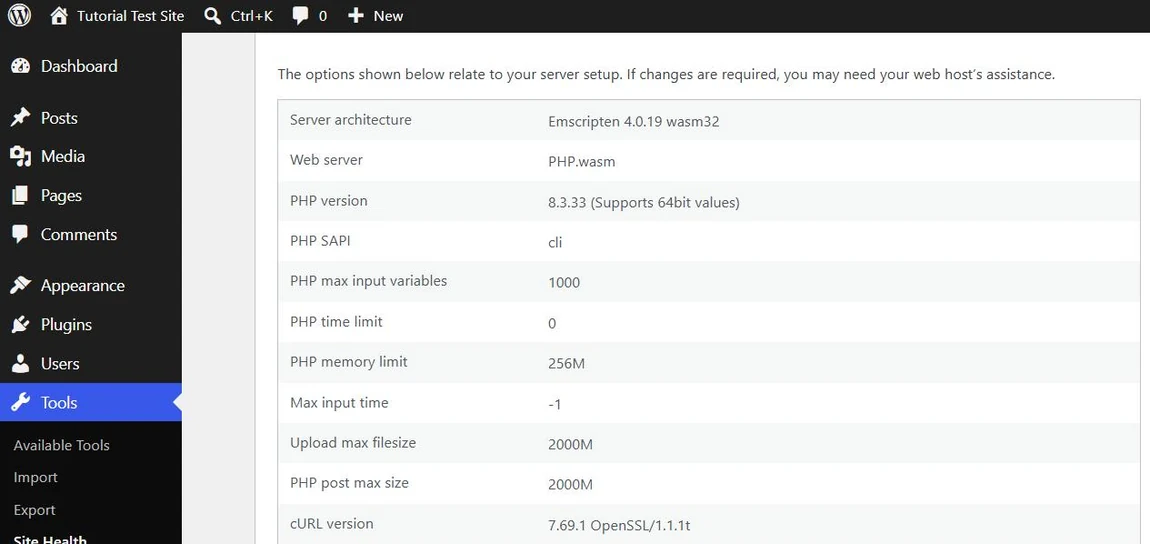
The values that matter most for imports are:
| Setting | Why it matters | What to look for |
|---|---|---|
| PHP version | Older PHP may not run current themes and plugins | WordPress recommends PHP 8.3 or newer |
| PHP memory limit | Large imports and page builders use a lot of memory | Check your theme’s documentation; many builder-based themes ask for 256M or more |
| PHP time limit (max execution time) | Long imports can be stopped mid-way | A low value is a common cause of half-finished imports |
| Upload max filesize / PHP post max size | Limits the size of files you upload | Must be larger than any file the importer uploads |
If a value is too low, ask your host to raise it. Many hosts let you change PHP settings in their control panel. Raising WordPress’s own memory limit in wp-config.php with WP_MEMORY_LIMIT only helps if the server allows that much memory; the WordPress documentation also warns that a higher limit can hide a real problem rather than fix it.
3. Install the required plugins first
Activate the theme, then install the plugins it asks for, usually through a notice or a setup screen in the dashboard. For an Elementor theme that typically means Elementor itself plus a contact form plugin and any companion plugin from the theme author. Install WooCommerce only if you use a shop demo.
Importing before the plugins are active is a common reason for pages that show raw shortcodes, empty sections or missing custom post types.
4. Pick one demo
If the theme offers several demos (some Shtheme products list four, five or sixteen homepage versions), choose one before you import. Importing several demos into the same site multiplies pages, images and menus that you will have to clean up later.
Running the import
- Open the theme’s demo import screen (its location depends on the theme; check the documentation).
- Choose the demo and, if offered, the parts to import (content, widgets, settings).
- Start the import and keep the tab open until it reports completion. Importing images can take several minutes on shared hosting.
- Don’t refresh or click away if the progress bar pauses for a while. If nothing changes for a long time, check the troubleshooting table below before trying again.
If your theme provides only an XML file
Go to Tools › Import, install the WordPress importer if it isn’t installed yet, and run it:
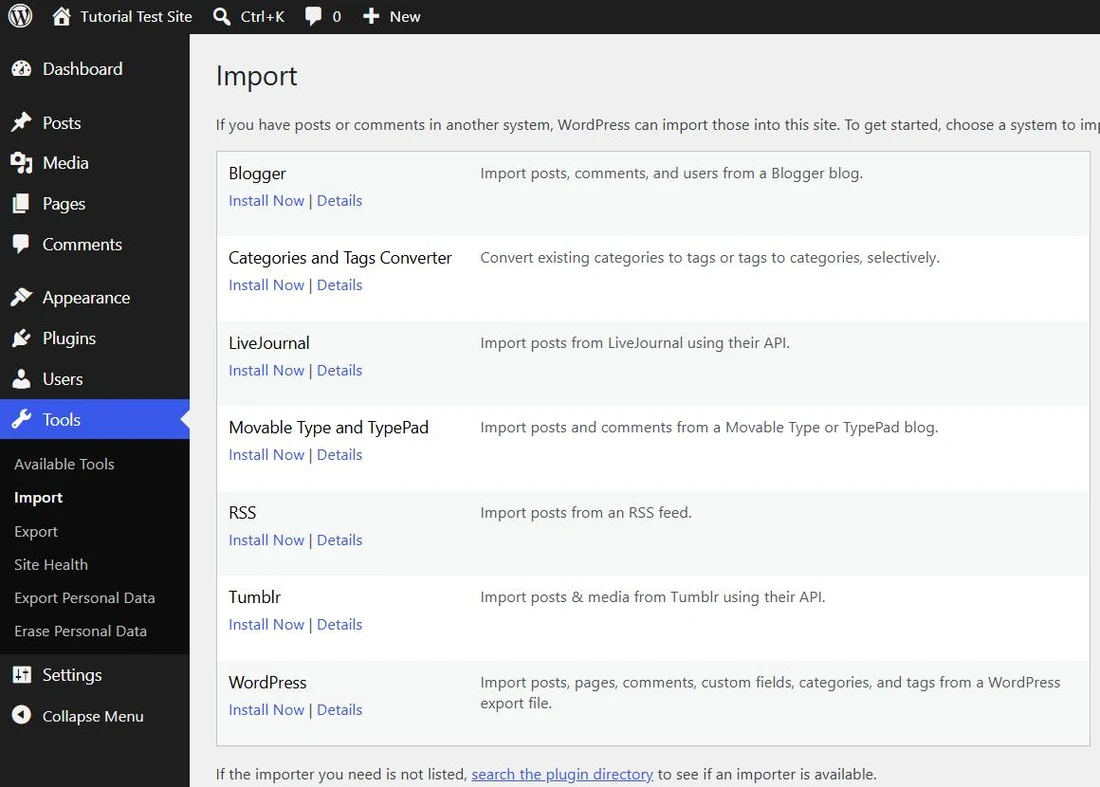
Upload the XML file, assign the imported content to an existing user, and tick Download and import file attachments if you want the demo images. Then import any widget or settings files the theme provides with the tools its documentation names.
A note on versions: when we checked on 2 October 2026, the WordPress Importer plugin page showed version 0.9.6, more than two million active installations and a notice that it had not been tested with the latest three major WordPress releases. It is still widely used, but test imports on a staging site first.
After the import: what to check
- Settings › Reading: is the homepage set to the demo’s home page? Our guide to pages, posts, menus and homepage settings explains these settings.
- Appearance › Menus › Manage Locations: are the menus assigned?
- Images: do they appear? Demo images are often placeholders or licensed only for the demo; replace them with your own before launch.
- Permalinks: if pages return “not found” errors, open Settings › Permalinks and click Save Changes once without changing anything. That refreshes the rewrite rules.
- Forms: send a test message from every form.
- Demo leftovers: delete demo posts, products, testimonials and team members you won’t use. Empty the trash.
Troubleshooting failed imports
| What you see | Likely cause | What to do |
|---|---|---|
| Import stops at the same percentage | PHP time limit or memory too low | Ask your host to raise them, then run the import again on a clean install |
| “Allowed memory size … exhausted” | PHP memory limit too low | Raise the memory limit; deactivate unneeded plugins during the import |
| The uploaded file exceeds the upload_max_filesize directive in php.ini. | Upload limit smaller than the import file | Raise upload_max_filesize and post_max_size, or use the theme’s server-side import option if it has one |
Pages show [shortcodes] or empty sections |
Required plugins weren’t active | Activate the plugins, delete imported pages, import again |
| Images missing | Remote image download blocked or timed out | Re-run the importer with attachments, or upload replacements manually |
| Duplicate pages and menus | Imported twice or into an existing site | Start again on a clean install, or delete the duplicates carefully |
| “The link you followed has expired.” | A security token timed out or a form exceeded server limits | Refresh the import screen and start again; check upload limits |
If an import breaks the site entirely and you see a “critical error” message, our guide to recovering from a critical error walks through the safe way back.
Importing an Shtheme demo
Most Shtheme products list One Click Demo Data Importer or One Click Import Data on their product pages, and they are built for Elementor. Before importing, compare the live demo with the pages you need: if you only need a homepage, services and contact page, import the demo that matches that structure rather than the largest one. If an import fails after you have checked the server limits above, contact the author through the product page’s support form and include your PHP version and memory limit from Site Health.
Not sure which demo fits? Open two or three demos from the Shtheme theme catalog side by side and count the page types each one includes before you import anything.