Free themes from the WordPress.org directory show an update notice in your dashboard and update with one click. Premium themes often don’t. Depending on where you bought the theme, an update may come through a vendor plugin, a license key, or simply a new ZIP file in your account.
The method matters less than what happens to your customizations. This guide explains what an update replaces, what it leaves alone, and the routine we recommend for updating a premium theme by uploading a ZIP. The screenshots show the process on a WordPress 7.1.2 test site, updating a test theme from version 1.0.0 to 1.1.0.
What a theme update replaces, and what it doesn’t
When WordPress updates a theme, it deletes the theme’s folder and installs the new version in its place. That has a clear consequence:
| Your change | Stored where | Survives an update? |
|---|---|---|
| Edits to the parent theme’s PHP, CSS or JS files | Theme folder | No – overwritten |
| Files you added inside the parent theme folder | Theme folder | No – deleted |
| Child theme files | Child theme folder | Yes |
| Theme options and Customizer settings | Database | Yes, in most themes |
| Pages built with Elementor or the block editor | Database | Yes |
| Menus, widgets, posts and media | Database | Yes |
| Additional CSS added in the Customizer | Database | Yes |
So the rule is simple: never edit the parent theme’s files. Put code changes in a child theme (our child theme guide shows how) and design changes in the theme options or your page builder.
If someone has already edited the parent theme, compare its files with a fresh copy of the same version before you update, and move the changes into a child theme first.
The routine
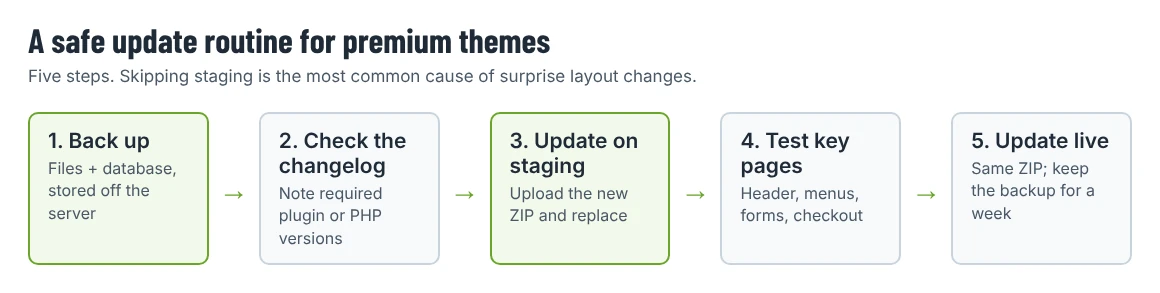
1. Back up files and the database
Take a full backup, or confirm that your host’s automatic backup from today exists and can be restored. Download it or keep it somewhere off the server.
2. Read the changelog and requirements
Before you download the new version, check:
- What changed, especially in templates you have overridden in a child theme.
- Whether the new version needs newer versions of PHP, WordPress or bundled plugins such as Elementor.
- Whether bundled premium plugins must be updated at the same time.
On Shtheme, each product page shows a Last Update date and lists the WordPress versions the theme is compatible with, which tells you whether a newer version is likely to be available.
3. Get the update the way your seller provides it
- Marketplace or vendor plugin: some sellers deliver updates through their own plugin and license key. Follow their instructions.
- New ZIP file: download the latest version from your account or the product page. If the download is a full package, extract it and use the inner theme ZIP. Uploading the outer package instead produces an installation error; see how to fix the missing stylesheet message if that happens.
4. Update on a staging site first
Many hosts offer one-click staging. Update there, then test before touching the live site.
To update by ZIP, go to Appearance › Themes › Add Theme › Upload Theme, choose the new theme ZIP and click Install Now. Since WordPress 5.5, uploading a theme that is already installed doesn’t fail; WordPress compares the two versions and asks what to do:
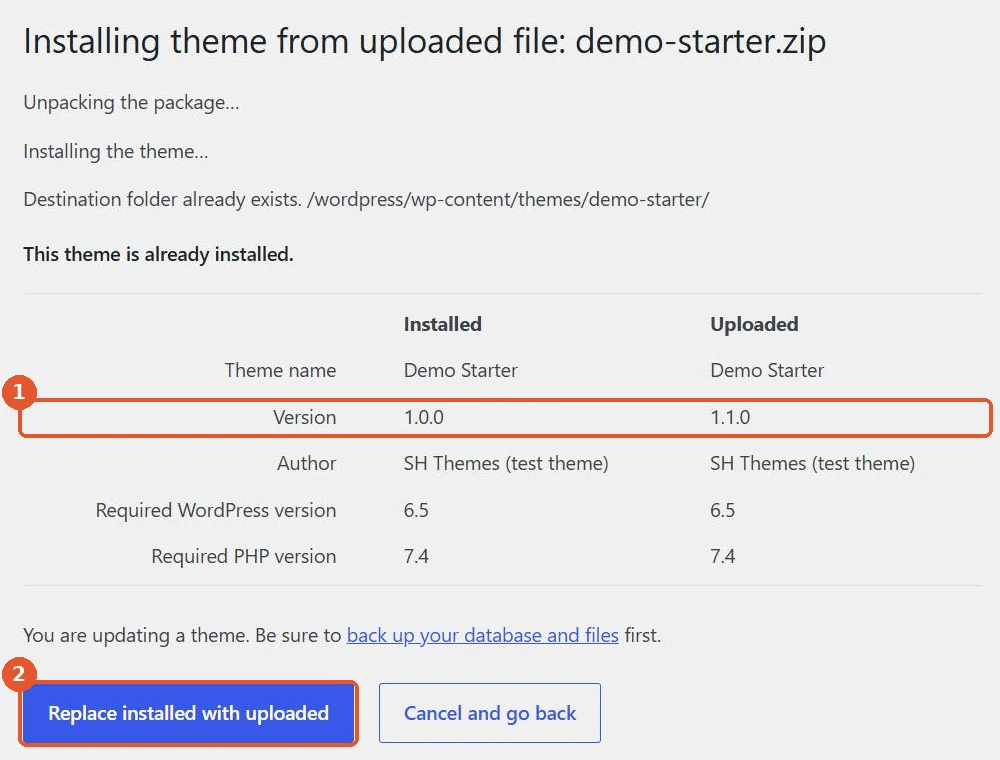
Check the Version row and the required WordPress and PHP versions. If the uploaded version is lower than the installed one, you are about to downgrade; stop unless that is what you intend. When you are ready, click Replace installed with uploaded. (The wording changes slightly when the theme you are replacing is the active theme.)
WordPress removes the old files and installs the new ones:
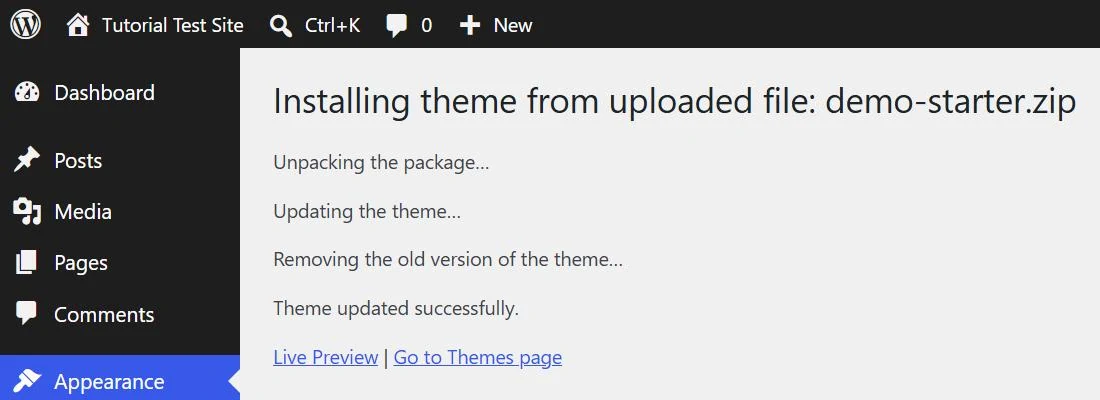
If you use a child theme, it stays active and now runs on the updated parent. You don’t need to re-activate anything.
5. Test the pages that matter
Clear any caching plugin and server cache, then check:
- The header, footer and menus on desktop and mobile.
- The homepage and one page of each type (service, post, product).
- Forms, search and, for shops, the cart and checkout.
- Any template you override in the child theme.
- Tools › Site Health for new warnings.
6. Repeat on the live site
Upload the same ZIP on the live site, preferably at a quiet time. Keep the backup for at least a week in case a problem appears later.
Updating bundled plugins
Premium themes often bundle plugins: a companion plugin with the theme’s widgets, sometimes a premium slider or builder add-on. After updating the theme, check Plugins and the theme’s own plugin installer for available updates. Old companion plugins are a common cause of layout problems after a theme update.
If something breaks
- Layout changed: check whether you override a template the new version changed. Compare your child theme copy with the new parent file.
- Missing styles or broken page builder layouts: regenerate the page builder’s generated CSS if your builder offers that option, then clear all caches.
- White screen or “There has been a critical error on this website”: restore the backup or roll back to the previous theme ZIP using the same upload screen (WordPress will offer to replace the newer version with the older one). Our critical error recovery guide covers the steps.
Should you turn on automatic theme updates?
For themes from the WordPress.org directory, automatic updates are a reasonable choice on simple sites with good backups. For premium themes with a child theme and template overrides, we recommend updating manually with the routine above, so you can read the changelog and test first. The WordPress security checklist explains where to enable auto-updates when they do make sense.
Quick checklist
- Backup taken and stored off the server.
- Changelog read; PHP and WordPress requirements met.
- Customizations live in a child theme or the database, not in the parent theme folder.
- Update tested on staging.
- Header, menus, forms and checkout checked after the update.
- Bundled plugins updated.
Shtheme buyers can find the latest version and its Last Update date on the product page, for example Nixer. If an update changes something your site depends on, contact the author from the product page’s support form with your WordPress version and a list of the templates you override.