A new WordPress site is not insecure by default, but it does start with settings chosen for convenience, not for your situation. The first week after launch is the easiest time to tighten them, before there are dozens of users, plugins and integrations to work around.
This checklist covers ten settings and habits that any site owner can review in about an hour, without a security plugin or server access for most of them. All screenshots were taken on a test installation of WordPress 7.1.2.
1. Read the Site Health screen first
Go to Tools › Site Health. WordPress runs a set of checks and sorts the results into critical issues and recommended improvements.
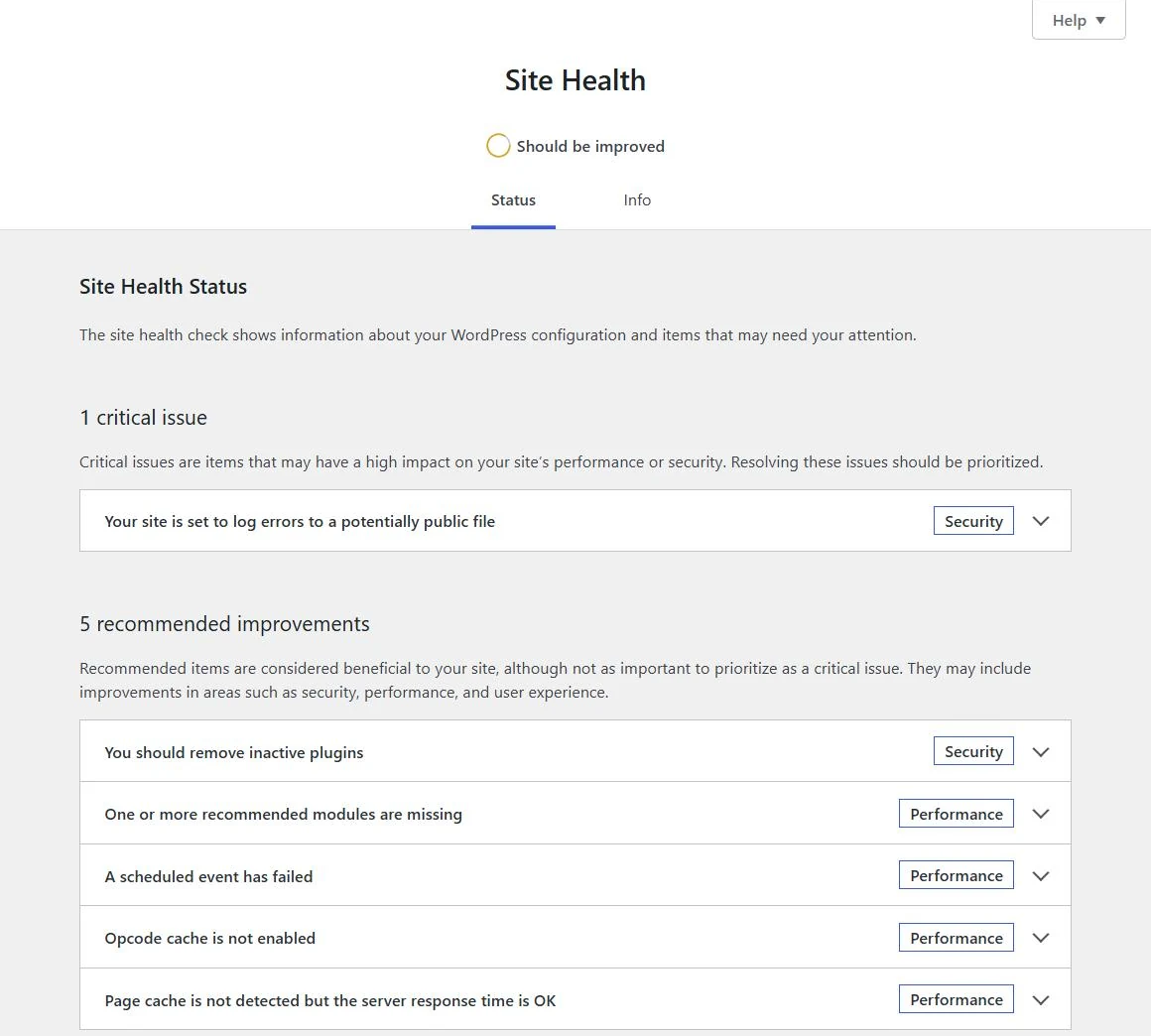
On our test site, the critical issue was “Your site is set to log errors to a potentially public file”. That is a typical leftover after troubleshooting: debug logging was switched on and never switched off. Work through the critical items first, then decide which recommendations apply to you. Some, such as caching or missing PHP modules, are for your host to fix.
2. Keep WordPress, themes and plugins updated
Outdated plugins and themes are one of the most common ways into a WordPress site, which is why the official hardening guide puts updates first. WordPress applies minor and security releases automatically by default, and since WordPress 5.5 you can switch on automatic updates for individual plugins and themes:
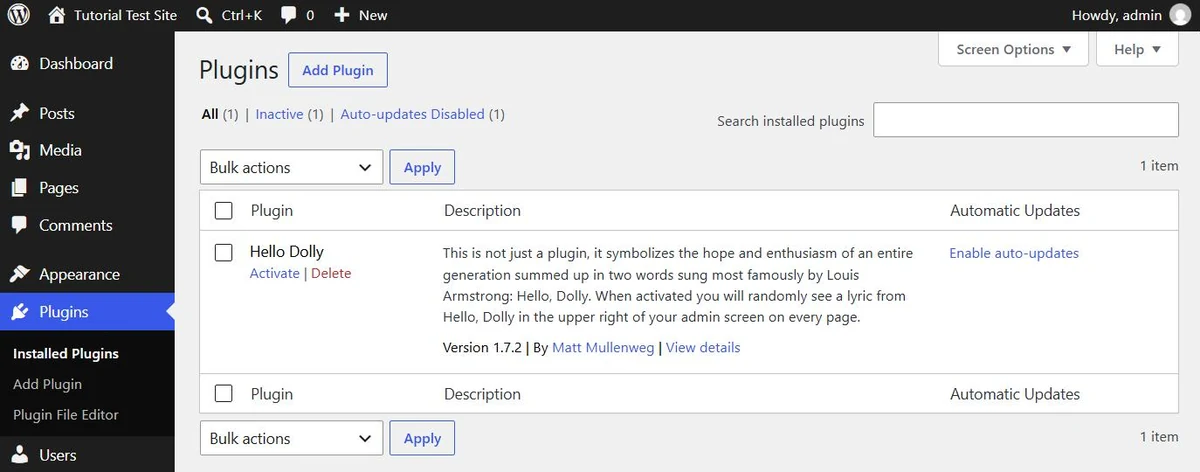
- On Plugins › Installed Plugins, use the Automatic Updates column (or the bulk action) to enable auto-updates per plugin.
- On Appearance › Themes, open a theme’s details and click Enable auto-updates.
Auto-updates only work for software that can be updated through WordPress. Premium themes and plugins bought outside the WordPress.org directory often need a license key, a vendor plugin or a manual ZIP upload; our guide to updating a premium theme covers the safe way to do that.
When we checked on 2 October 2026, the current WordPress release was 7.1.2, a security release published on 22 September 2026 that fixed a critical vulnerability.
3. Review who has an account, and with which role
Go to Users › All Users and check every account. WordPress has five standard roles on a single site:
| Role | Can do |
|---|---|
| Administrator | Everything, including installing plugins and managing users |
| Editor | Publish and manage all posts and pages, including other people’s |
| Author | Publish and manage their own posts |
| Contributor | Write their own posts but not publish them |
| Subscriber | Manage their own profile only |
Give each person the lowest role that lets them do their job. A copywriter rarely needs to be an administrator. Remove accounts created for a developer or agency once the work is finished, or downgrade them.
4. Turn off open registration unless you need it
Go to Settings › General:
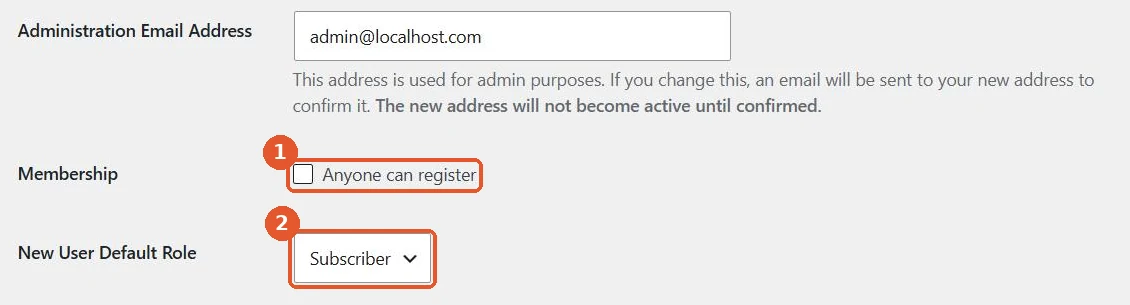
- Leave Anyone can register unticked unless visitors genuinely need accounts (a membership site, a forum, a shop with customer accounts handled by WooCommerce).
- Keep New User Default Role at Subscriber. Never set it to Administrator or Editor.
While you are here, make sure the Administration Email Address is a mailbox someone reads. WordPress sends security notices and recovery links there.
5. Use strong, unique passwords and two-factor authentication
Every administrator should use a long, unique password stored in a password manager. WordPress shows a strength meter when you set a password; aim for “Strong”.
WordPress core does not include two-factor authentication. The free Two Factor plugin, maintained under the WordPress.org account, adds authenticator-app codes, email codes and backup codes. Enable it at least for administrators and editors. Many security plugins and hosts offer the same feature.
6. Check application passwords
Application passwords let external tools (mobile apps, automation services, integrations) connect to your site through the REST API without using your main password. You manage them at the bottom of Users › Profile:
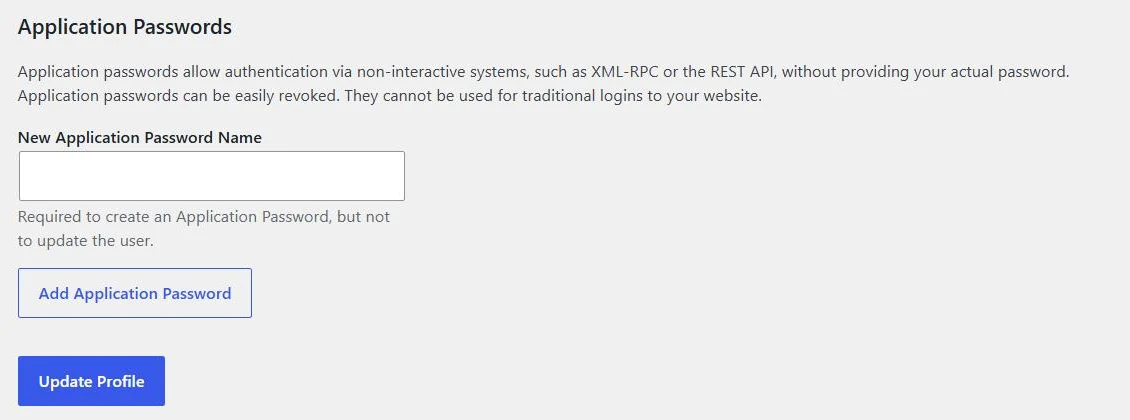
They can’t be used to log in to the dashboard, and each one can be revoked on its own. Review the list now and then and remove any you don’t recognize or no longer use. If your site never needs them, a developer can disable the feature with the wp_is_application_passwords_available filter.
7. Disable the theme and plugin file editor
The dashboard’s Theme File Editor and Plugin File Editor let administrators change PHP files directly. That is convenient for attackers who get into an admin account, and risky even for honest edits. Add this line to wp-config.php, above the line that says to stop editing:
define( 'DISALLOW_FILE_EDIT', true );
The WordPress hardening guide notes that this doesn’t stop someone uploading malicious files, but it closes a common route. Make code changes in a child theme on your computer or a staging site instead.
8. Install themes and plugins only from sources you trust
The WordPress hardening guide recommends getting themes and plugins from the WordPress.org directory or established vendors. “Nulled” copies of premium products, shared on download sites, are a common way malware gets onto WordPress sites. Delete themes and plugins you don’t use, including inactive ones; inactive code can still contain vulnerable files.
Keep one default theme installed (such as Twenty Twenty-Five) as a fallback. If your main theme breaks, WordPress can switch to it.
9. Set up backups you have actually tested
A backup is only useful if you can restore it. Check that:
- Backups include both files and the database.
- They are stored somewhere other than the web server (your host’s separate storage, or a cloud service).
- They run on a schedule that matches how often the site changes: daily for shops and busy blogs, weekly for brochure sites.
- You have restored one, at least once, to a staging site.
10. Use HTTPS everywhere
WordPress lists HTTPS as a requirement for every install. Most hosts provide free certificates. Check that Settings › General shows https:// for both the WordPress Address and the Site Address, and that visiting the http:// version redirects to https://.
A one-page checklist
| Check | Where | Done |
|---|---|---|
| Critical Site Health issues fixed | Tools › Site Health | ☐ |
| Auto-updates on for trusted plugins | Plugins | ☐ |
| Premium theme update method known | Theme documentation | ☐ |
| Every user has the lowest workable role | Users | ☐ |
| Registration off, default role Subscriber | Settings › General | ☐ |
| Two-factor enabled for admins | Plugin or host | ☐ |
| Unused application passwords revoked | Users › Profile | ☐ |
| File editor disabled | wp-config.php | ☐ |
| Unused themes and plugins deleted | Appearance, Plugins | ☐ |
| Off-site backups tested | Host or backup plugin | ☐ |
| HTTPS forced | Host and Settings › General | ☐ |
What a theme can and can’t do for security
A well-maintained theme reduces risk by keeping its bundled code current, but no theme makes a site secure on its own. When you choose one, look at the last update date and how updates are delivered. On Shtheme, product pages show a Last Update date in the item information, and the pages we checked list Future updates under the license box, so you can check both before buying.
If something does go wrong after an update and you see “There has been a critical error on this website”, follow our step-by-step recovery guide rather than reinstalling WordPress. And if you haven’t set up your site structure yet, our guide to pages, posts and menus is a good place to start before you add users and content.