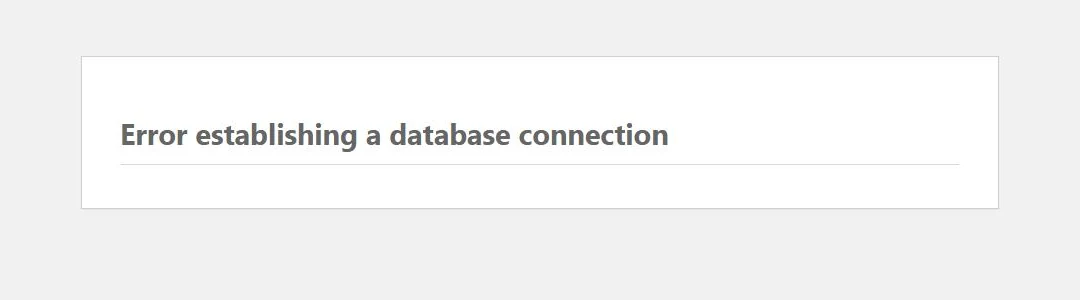
Every page of your site, including the dashboard, shows a single line: Error establishing a database connection. It looks alarming, but it describes one specific problem: WordPress can’t talk to the database where your content is stored. In most cases the content is still there. WordPress just can’t reach it.
This guide explains what causes the error, how to find which cause applies to you and how to fix it, starting with the safest checks.
What the error means
WordPress stores posts, pages, users and settings in a MySQL or MariaDB database. On every request it connects using four values in wp-config.php: the database name, user, password and host. If the connection fails, WordPress stops and shows this message (or a custom page, if a file called db-error.php exists in wp-content).
The usual causes:
| Cause | Typical trigger |
|---|---|
Wrong database details in wp-config.php |
Site moved to a new host, database password changed, wp-config.php edited |
| Database server down or overloaded | Hosting outage, traffic spike, resource limits on shared hosting |
| Database user lost its permissions | Changes in the hosting control panel |
| Corrupted database tables | Server crash, interrupted operation, disk problems |
Before you start
- Don’t reinstall WordPress or delete anything. The fix is almost always a setting or a server issue.
- Make a backup of
wp-config.phpbefore you edit it. If you have a recent full backup of the site, note where it is; you may need it in step 5. - You will need access to your hosting control panel and to the site files through the host’s file manager or SFTP.
Step 1: Check whether the problem is the server
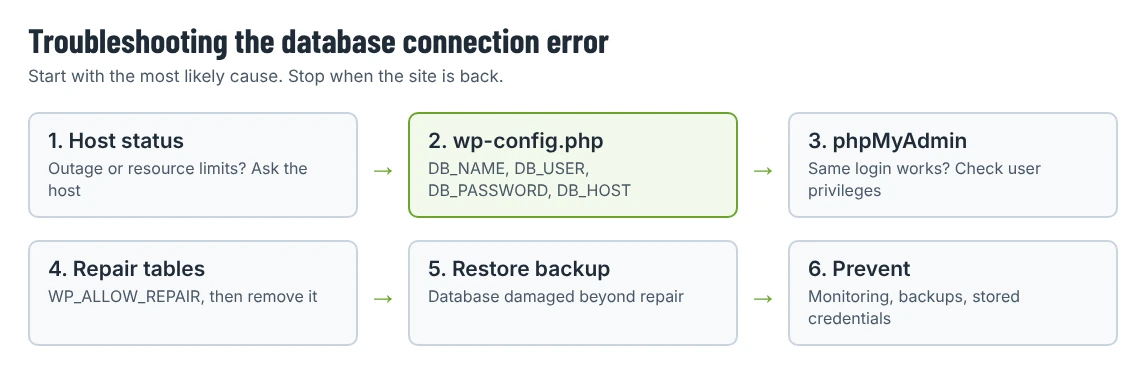
Open your host’s status page or contact support and ask whether there is a database or server incident. If several sites on the same hosting account show the same error, the database server is the likely cause.
Also check the time: if the error appeared during a traffic spike or right after a large import, the database server may have hit its connection or resource limits. On shared hosting, your host can tell you whether your account was throttled.
If the host confirms an outage, wait for them to fix it. There is nothing to change on your side.
Step 2: Check the details in wp-config.php
Open wp-config.php in the site’s root folder and find these lines:
define( 'DB_NAME', 'example_db' );
define( 'DB_USER', 'example_user' );
define( 'DB_PASSWORD', 'example-password' );
define( 'DB_HOST', 'localhost' );
Compare each value with the database details in your hosting control panel (often under Databases or MySQL Databases):
- DB_NAME and DB_USER must match exactly, including any prefix the host adds, such as
account_wp123. - DB_PASSWORD must match the database user’s password, not your hosting login. If you aren’t sure, set a new password for the database user in the control panel and copy it into
wp-config.php. - DB_HOST is often
localhost, but some hosts use a separate database server name or a port number. Your host’s documentation lists the correct value.
Save the file and reload the site. This step fixes most cases that follow a migration or a password change.
Step 3: Test the credentials directly
If the details look right but the error stays, log in to phpMyAdmin (or your host’s database tool) using the same user and password. If that login fails, the problem is the credentials or the user’s permissions, not WordPress. In the control panel, check that the user is assigned to the database with all privileges, then try again.
Step 4: Repair the database if tables are damaged
If the dashboard shows a different message, such as one saying that database tables are unavailable and may need to be repaired, WordPress has connected but found damaged tables. WordPress includes a repair tool:
- Add this line to
wp-config.php, above the line that says “That’s all, stop editing”:
php
   define( 'WP_ALLOW_REPAIR', true );
- Visit
https://your-site.com/wp-admin/maint/repair.phpand choose Repair Database. - Remove the line from
wp-config.phpas soon as you are done. The repair page doesn’t require a login while it is enabled.
Your host may also offer a repair or check function in phpMyAdmin or the control panel.
Step 5: Restore from backup if needed
If the database is badly damaged or missing, restore the most recent database backup from your host or your backup plugin. Restore to a staging copy first if you can, and check that recent posts, orders and form entries are there. Our backup and restore guide explains the process.
If the error comes and goes
An error that appears for a few minutes and then disappears usually points to resource limits rather than wrong settings:
- Ask your host whether the database hit its connection limit and at what times.
- Look for a plugin or scheduled task that runs heavy database queries, especially after recent installs.
- Check for bot traffic hitting search or login pages.
- If the site has outgrown its plan, a bigger plan or a host with dedicated database resources may be the real fix.
After the site is back
- Check the content. Open recent posts, a few pages, and on a shop, recent orders.
- Check for other errors. If the site now shows “There has been a critical error”, follow our critical error guide.
- Check updates. If the error happened during an update, the update may be incomplete. Our guide to the “Briefly unavailable” maintenance message covers interrupted updates.
- Set up monitoring. A free uptime monitor emails you when the site goes down, so you don’t hear about it from visitors.
- Store credentials safely. Keep the database details in a password manager, and update
wp-config.phpin the same step whenever the database password changes.
Optional: a friendlier error page
If a file named db-error.php exists in wp-content, WordPress shows it instead of the default message. A short page with your logo, a sentence saying the site will be back soon and a phone number is kinder to visitors. Keep it plain HTML, since WordPress can’t load your theme or plugins without a database.
Quick checklist
- Ask the host whether there is a server or database issue.
- Compare
DB_NAME,DB_USER,DB_PASSWORDandDB_HOSTwith the control panel. - Test the same login in phpMyAdmin.
- Repair damaged tables with
WP_ALLOW_REPAIR, then remove it. - Restore the database from backup if it is damaged beyond repair.