A backup you have never restored is a hope, not a plan. Most site owners discover that their backups were incomplete, out of date or stored on the same server that just failed at the worst possible moment: after a bad update, a hack or a hosting problem.
This guide covers what a complete WordPress backup includes, the main ways to make one, how to set up a schedule with a free plugin, and, the step most people skip, how to test that the backup actually restores.
What a complete backup includes
A WordPress site has two halves, and you need both:
- The database: posts, pages, comments, users, settings, menus, widget settings, plugin data, WooCommerce orders and form entries.
- The files: everything in
wp-content(uploaded media, themes and plugins), pluswp-config.phpand, on Apache servers,.htaccess.
WordPress core files can be downloaded again at any time, so they are less critical, but many backup tools include them anyway.
A database-only backup won’t bring back your images. A files-only backup won’t bring back your posts. Check which parts your current backup covers.
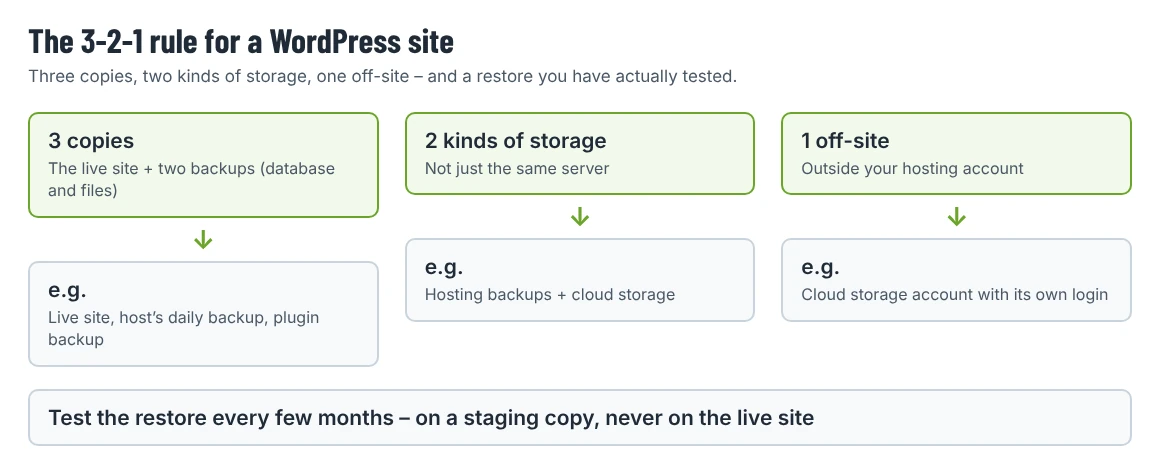
The 3-2-1 rule
A widely used rule of thumb for backups:
- 3 copies of your data (the live site plus two backups),
- on 2 different kinds of storage,
- with 1 copy off-site, outside your hosting account.
For a small WordPress site, that can be as simple as your host’s daily backups plus a plugin sending weekly backups to cloud storage. The important part is the off-site copy: if the hosting account is compromised, suspended or deleted, backups stored inside it go with it.
Three ways to back up WordPress
| Method | Pros | Watch out for |
|---|---|---|
| Your host’s backups | Automatic, usually daily, often with one-click restore | Stored with the host; retention period varies; you may not be able to download them |
| A backup plugin | Schedules, remote storage, restore from the dashboard | Uses your server’s resources; very large sites can hit time limits |
| Manual (SFTP + database export) | Full control, no plugin | Easy to forget; easy to miss a part |
Most sites should use two of these: host backups for quick daily restores, and a plugin or manual backup that you keep off-site.
Setting up scheduled backups with UpdraftPlus
UpdraftPlus is one of the most widely used backup plugins on WordPress.org (version 1.26.13, 4,000,000+ active installations, checked 20 October 2026). Other well-known options include Duplicator, All-in-One WP Migration and BackWPup; the principles below apply to all of them.
After installing and activating it:
- Click UpdraftPlus in the dashboard menu and open the Settings tab. If the plugin shows its setup wizard first, you can follow it or choose Exit setup and configure the tabs directly.
- Set a Files backup schedule and a Database backup schedule, and how many backups to keep:
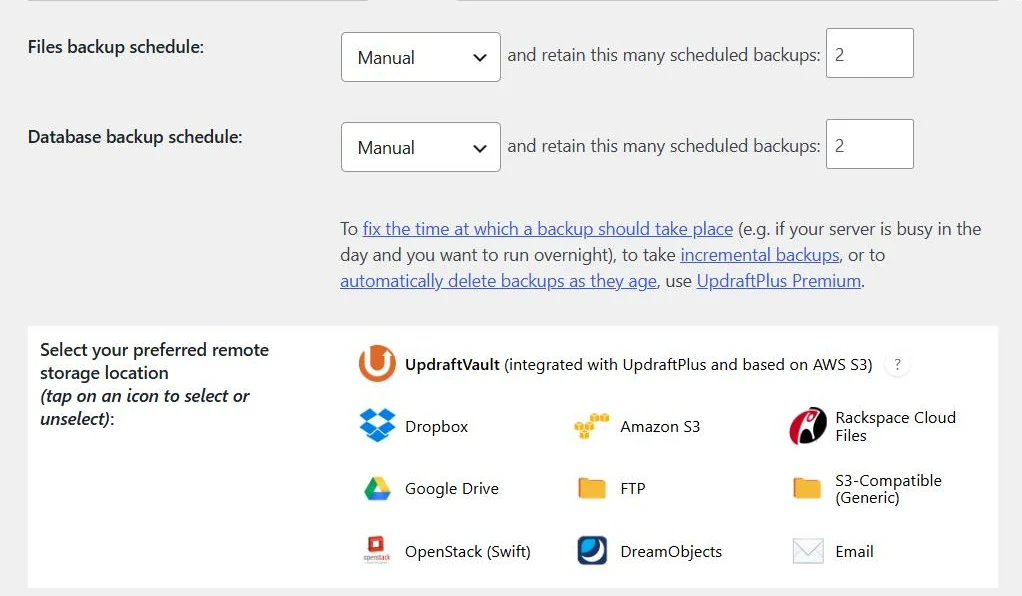
- Choose remote storage. The free version lists UpdraftVault, Dropbox, Amazon S3, Rackspace Cloud Files, Google Drive, FTP, S3-compatible storage, OpenStack, DreamObjects and email. Others, such as Microsoft OneDrive, Backblaze and SFTP, are listed for the Premium version.
- Click the storage icon, follow the steps to connect your account and save the settings.
- Go back to the Backup / Restore tab and run a first backup manually with Backup Now.
The screenshot comes from our WordPress 7.1.3 test site, where we configured the screen but didn’t connect remote storage or run a full backup and restore.
How often? Match the schedule to how often the site changes:
| Site type | Database | Files |
|---|---|---|
| Brochure site, edited monthly | Weekly | Weekly or monthly |
| Blog, several posts a week | Daily | Weekly |
| Shop or booking site | Several times a day, or real-time from the host | Daily |
Also run a manual backup before every theme, plugin or WordPress update; our guide to updating a premium theme builds this into the process.
A note on scheduling: plugin schedules rely on WordPress’s built-in task scheduler (WP-Cron), which runs when someone visits the site. On a quiet site, scheduled backups can start late. If your host lets you set up a real server cron job for WordPress, scheduled tasks become more reliable.
Testing the restore
This is the part that turns backups into a plan. Do it once after setting up backups, then every few months.
- Create an empty test environment. A staging site from your host, a subdomain, or a local WordPress install on your computer. Never test a restore on the live site. Our staging guide lists options.
- Restore the most recent backup to it, using the same plugin or your host’s tools.
- Check what came back: – the latest post and the latest uploaded image; – menus, widgets and the homepage layout; – a page built with your page builder, if you use one; – for shops, recent orders and products; – logging in with your usual account.
- Write down how long it took and any step that was confusing. That is your restore procedure for a real emergency.
- Block search engines on the test copy and delete it when you are done, so it doesn’t compete with the live site.
If something is missing, fix the backup settings now. Common gaps are the uploads folder excluded to save space, a database backup that failed silently, or backups that only exist on the same server.
When you actually need to restore
If a site breaks after an update, a full restore isn’t always the first step. A single faulty plugin or theme can often be fixed by deactivating it; our critical error guide shows how. Restore from backup when:
- the site has been hacked and you have a clean backup from before the compromise;
- an update or import has damaged content or the database;
- files were deleted or overwritten and can’t be recovered otherwise.
Before restoring, take a backup of the broken state as well. It may contain orders, comments or form entries that arrived after the last backup.
Backup checklist
- Both database and files are backed up.
- At least one copy is stored outside the hosting account.
- The schedule matches how often the site changes.
- A manual backup runs before every update.
- A test restore has been done in the last few months, and the steps are written down.
- Login details for the remote storage are saved somewhere other than the website.
Backups belong in your first-week security setup too; our WordPress security basics covers the other settings to check.