Contact form messages that never arrive. Password reset emails that end up in spam. Order confirmations customers say they didn’t get. These are among the most common WordPress complaints, and the cause is rarely the form or the shop. It is how WordPress sends email in the first place.
This guide explains why WordPress email fails, how to fix it with an SMTP plugin and a proper sending service, and how to check that it works. Screenshots come from a WordPress 7.1.3 test site.
Why WordPress emails go missing
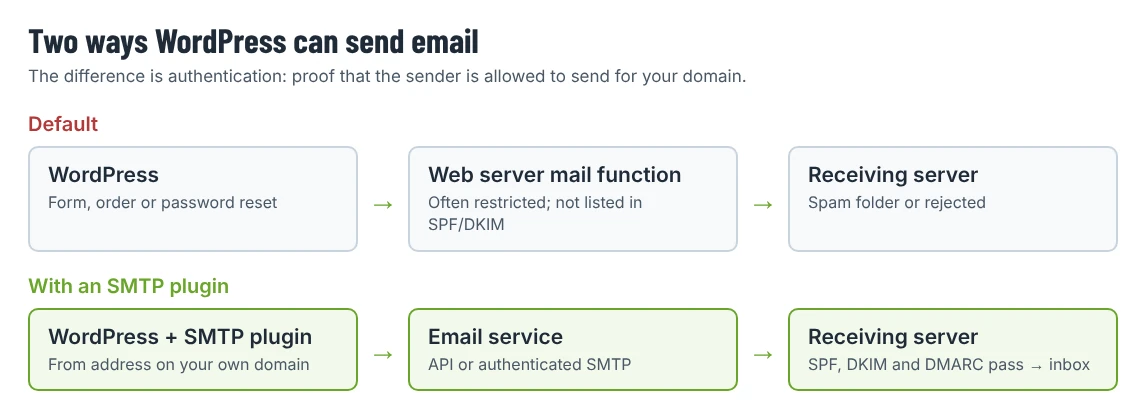
By default, WordPress hands every email to the web server’s built-in mail function. That has three problems:
- Many hosts restrict or disable it, so some emails are never sent at all.
- The email isn’t authenticated. Receiving servers such as Gmail and Outlook check whether the sending server is allowed to send for your domain, using DNS records called SPF and DKIM. A web server usually isn’t listed, so the message fails those checks.
- The From address often doesn’t match the server. A message “from”
info@yourbusiness.comsent by an anonymous web server looks exactly like spoofing, and receiving servers treat it that way.
Mailbox providers have tightened these checks. Google’s sender guidelines, for example, require all senders to Gmail accounts to set up SPF or DKIM, and bulk senders to use SPF, DKIM and DMARC (Google’s email sender guidelines). Unauthenticated website email increasingly goes to spam or is rejected.
The fix in one sentence
Send WordPress email through a proper email service, using an SMTP plugin, from an address on your own domain that the service is authorized to send for.
Step 1: Choose a sending service
| Option | Good for | Notes |
|---|---|---|
| Transactional email service | Shops, booking sites, any site that sends more than a handful of emails | Built for automated email; detailed logs; free tiers vary |
| Your business mailbox provider (Google Workspace, Microsoft 365) | Small sites sending a few messages a day | Uses your existing mailbox; sending limits and authentication setup apply |
| Your host’s SMTP server | Sites on hosts that provide authenticated email | Check deliverability and limits with the host |
For most business sites, a transactional service is the most reliable. Whichever you pick, you will add DNS records for your domain in the next steps.
Step 2: Install an SMTP plugin
Widely used SMTP plugins on WordPress.org (checked 20 October 2026):
- WP Mail SMTP: version 4.10.2, 4,000,000+ active installations.
- FluentSMTP: version 2.4.1, 700,000+ active installations.
- Post SMTP: version 4.0.2, 300,000+ active installations.
The steps below use WP Mail SMTP; the others have equivalent settings. Use only one SMTP plugin at a time.
Step 3: Set the From address and choose the mailer
Go to WP Mail SMTP › Settings. If the plugin opens its setup wizard, you can use it or close it and use the settings screen:
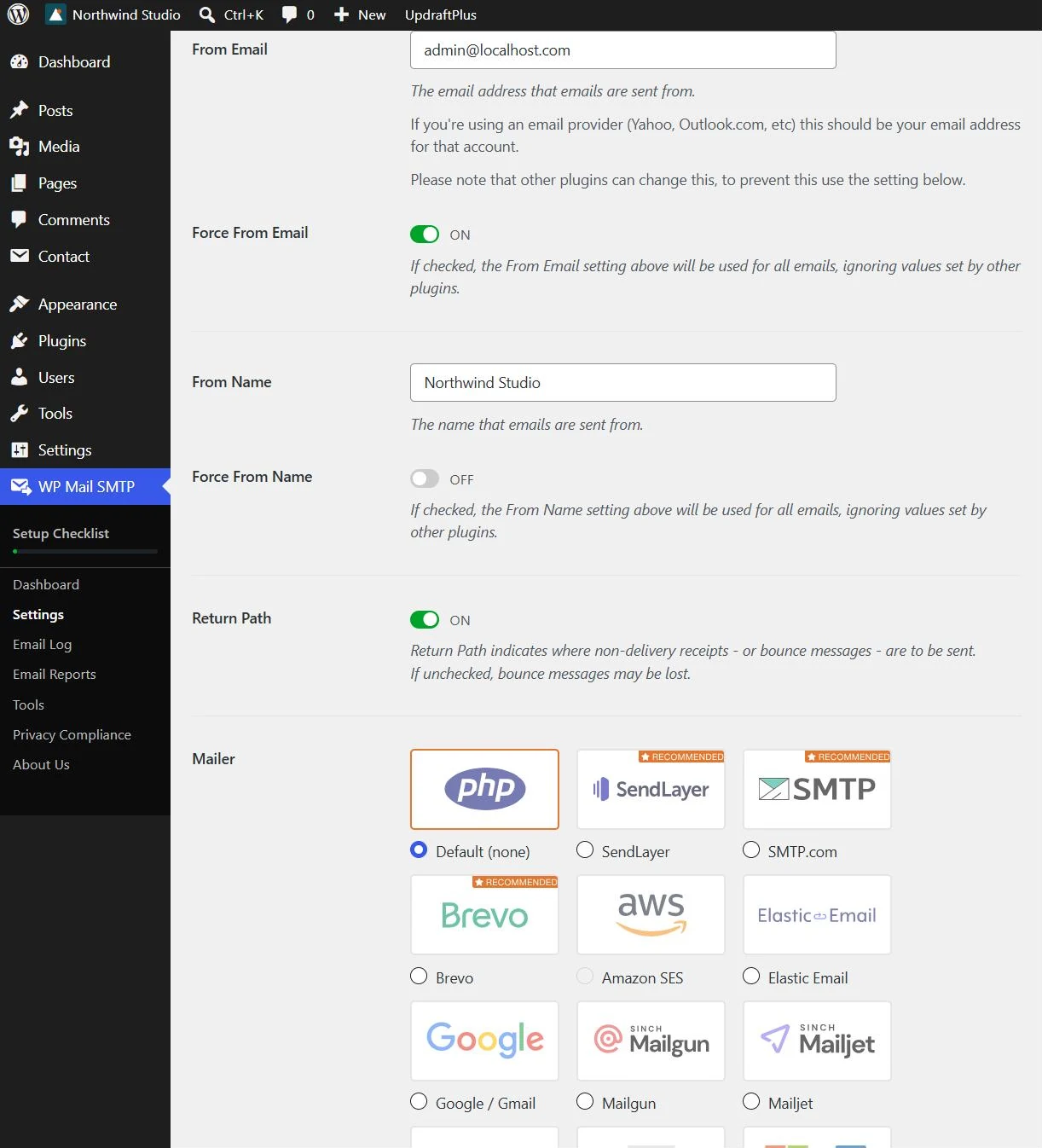
- From Email: an address on your own domain, such as
website@yourbusiness.com. It doesn’t have to be a real mailbox, but it must be on a domain your sending service is set up for. - Force From Email: leave it on, so every plugin sends from the same, authenticated address.
- From Name: your business name.
- Mailer: choose your service. On our test site the free version offered SendLayer, SMTP.com, Brevo, Elastic Email, Google / Gmail, Mailgun, Mailjet, MailerSend, Mandrill, Postmark, Resend, SendGrid, SMTP2GO, SparkPost and a generic Other SMTP option. Amazon SES, 365 / Outlook and Zoho Mail were available only in the Pro version.
- Enter the API key or SMTP details from your service and save.
API or SMTP? If your service is listed, its API connection is usually more reliable than plain SMTP, because it doesn’t depend on your host allowing outgoing mail ports. With Other SMTP, use port 587 with TLS or 465 with SSL; port 25 is often blocked on web hosting.
Step 4: Authenticate your domain
Your sending service will give you DNS records to add at your domain registrar or DNS host:
- SPF: a TXT record listing the services allowed to send for your domain. A domain should have only one SPF record; if one exists, add the new service to it instead of creating a second record.
- DKIM: a key that lets receiving servers verify the message wasn’t forged or altered.
- DMARC: a policy telling receiving servers what to do with messages that fail the checks, and where to send reports. Starting with a monitoring policy (
p=none) lets you see results before enforcing anything.
DNS changes can take time to take effect. Most services show a “verified” status once they see the records.
Step 5: Test properly
- Use the plugin’s test email tool (in WP Mail SMTP, under Tools › Email Test) to send a message to a Gmail or Outlook address you control.
- Open the message and view its headers (in Gmail: ⋮ › Show original). Check that SPF, DKIM and DMARC show PASS.
- Submit your real contact form and check that the message arrives.
- Trigger a password reset and, on a shop, a test order.
Contact forms: From and Reply-To
A common mistake is setting a contact form to send “from” the visitor’s email address. That fails authentication every time, because your server isn’t allowed to send for the visitor’s domain. Instead:
- From: your own domain address, the one set in the SMTP plugin.
- Reply-To: the visitor’s email, so clicking Reply goes to them.
Our Contact Form 7 guide shows where to set both in the Mail tab.
Troubleshooting
| Symptom | Likely cause |
|---|---|
| Test email fails with a connection error | Wrong SMTP host or port, or the host blocks the port; try the service’s API mailer |
| Email arrives but in spam | SPF, DKIM or DMARC not passing; From address not on the authenticated domain |
| Some emails arrive, others don’t | Another plugin overrides the From address; turn on Force From Email |
| Emails stopped suddenly | Expired API key or password, changed account settings, or a sending limit reached |
| Only one recipient doesn’t get emails | Their mailbox filters or blocks; ask them to check spam and allow your address |
If the site broke after installing a mail plugin, rather than just failing to send, our critical error guide shows how to disable plugins without dashboard access.
Security notes
- Store API keys and SMTP passwords carefully. Some plugins let you define them in
wp-config.phpinstead of the database; that keeps them out of database backups and exports. - Use a dedicated sending address or service account rather than a personal mailbox password.
- Review which plugins can send email, and remove those you don’t use; our security basics cover the rest of your first-week checks.
Checklist
- SMTP plugin installed and only one active.
- From address on your own domain, forced for all emails.
- Mailer connected with an API key or authenticated SMTP.
- SPF, DKIM and DMARC records added and passing.
- Contact forms use your address as From and the visitor’s as Reply-To.
- Test emails, a form submission and a password reset all arrive in the inbox.