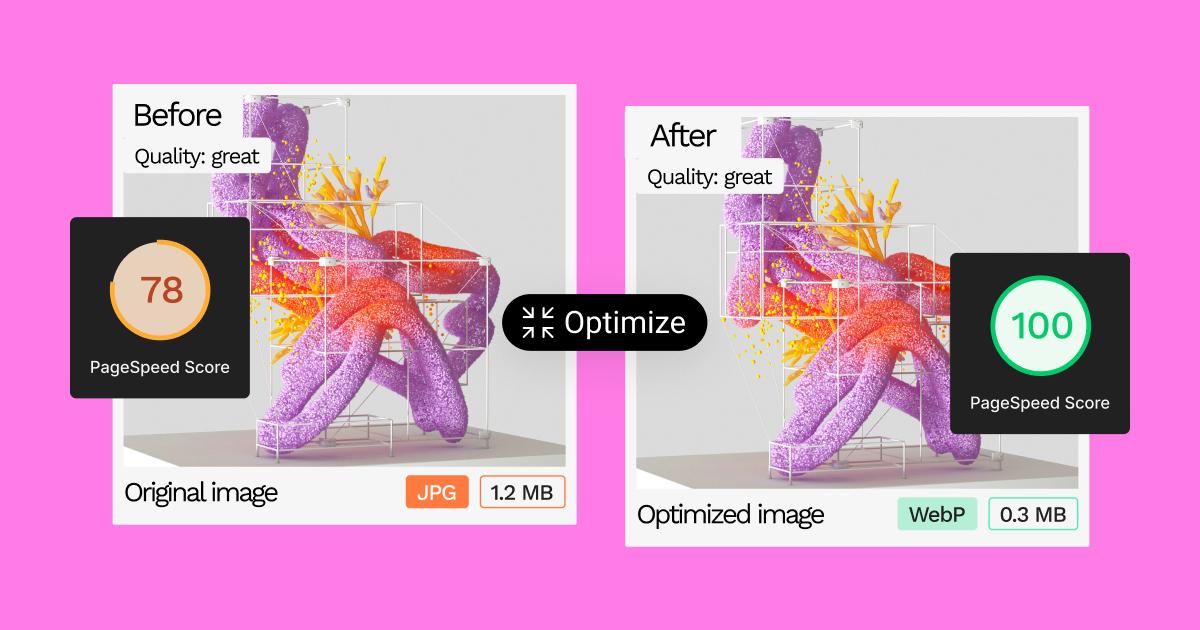
Website speed is no longer just a technical concern. It directly affects how visitors experience your website, how long they stay, and how easily they can interact with your content. For WordPress websites, poor performance is often caused by a combination of large images, excessive plugins, slow hosting, render-blocking resources, and poorly optimized themes.
That is why understanding WordPress Core Web Vitals is essential if you want to build a faster website without sacrificing design or functionality.
The good news is that you do not need to rebuild your entire WordPress website to improve performance. With a systematic approach, you can identify the biggest bottlenecks and optimize them one by one.
What Are Core Web Vitals and Why Do They Matter?
Core Web Vitals are Google’s user-focused performance metrics designed to measure important aspects of the page experience. The current Core Web Vitals consist of three metrics: Largest Contentful Paint (LCP), Interaction to Next Paint (INP), and Cumulative Layout Shift (CLS).
Each metric measures a different part of the user experience:
- LCP measures how quickly the main content becomes visible. A good LCP is 2.5 seconds or less.
- INP measures how quickly a page responds to user interactions. A good INP is 200 milliseconds or less.
- CLS measures unexpected layout movement while a page is loading. A good CLS is 0.1 or less.
These metrics matter for SEO because Google uses page experience signals as part of its ranking systems. However, Core Web Vitals should not be treated as a simple “get 100 on PageSpeed and rank higher” formula. Search relevance and many other factors still matter.
The practical goal is to provide a fast, stable, and responsive experience for real visitors.
How to Measure WordPress Core Web Vitals
Before changing anything, measure your website. Otherwise, you may spend hours optimizing something that has little impact.
1. PageSpeed Insights
Google’s PageSpeed Insights is one of the best starting points. It provides both field data, based on real users, and lab data, generated in a controlled Lighthouse environment.
Enter your URL and test both:
- Mobile
- Desktop
Pay particular attention to LCP, INP, CLS, TTFB, and the opportunities listed under the performance report.
2. GTmetrix
GTmetrix is useful for understanding the loading sequence of your website. It can help you identify large assets, excessive requests, JavaScript problems, slow server responses, and other bottlenecks.
Do not focus only on the final performance score. Look at the actual resources responsible for the delay.
3. Google Search Console
Search Console’s Core Web Vitals report is useful for monitoring real-world performance across groups of URLs. Google recommends prioritizing URLs marked Poor before those classified as Needs Improvement.
7 Ways to Improve WordPress Core Web Vitals
1. Optimize Your Images
Images are one of the most common causes of slow WordPress pages.
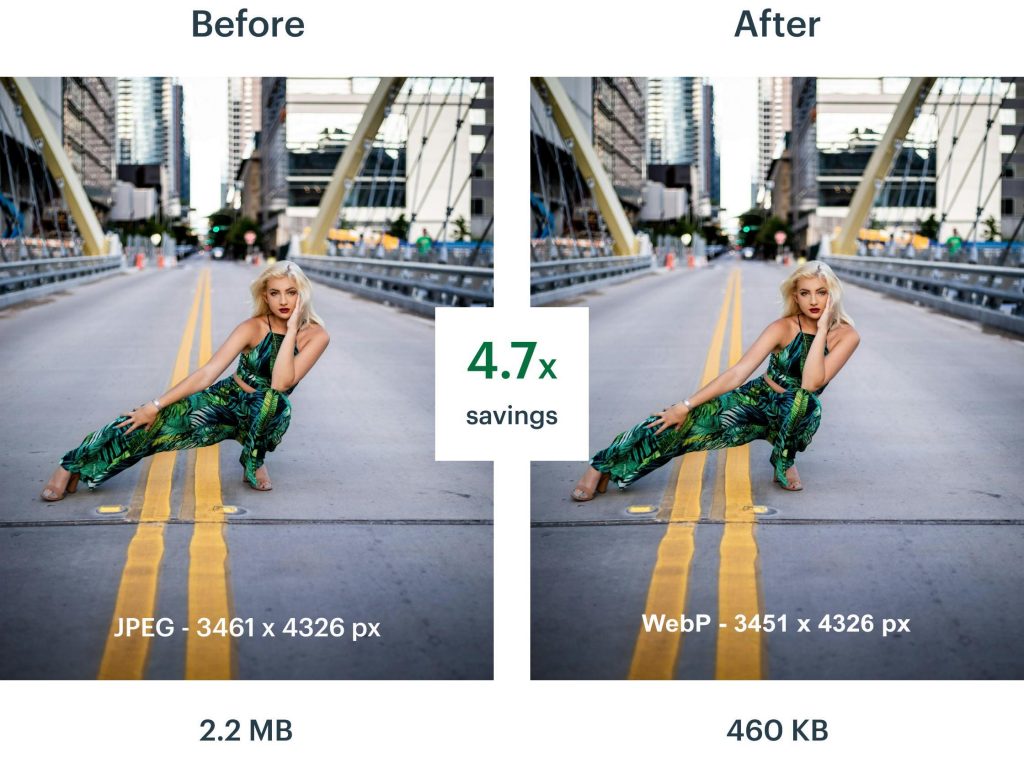
Uploading a 4000px image when your website displays it at 1200px wastes bandwidth and increases loading time. Large hero images can be particularly damaging to LCP because the largest image on the page is often the LCP element.
✨ Key Image Optimization Tips:
- Resize images to their actual display dimensions
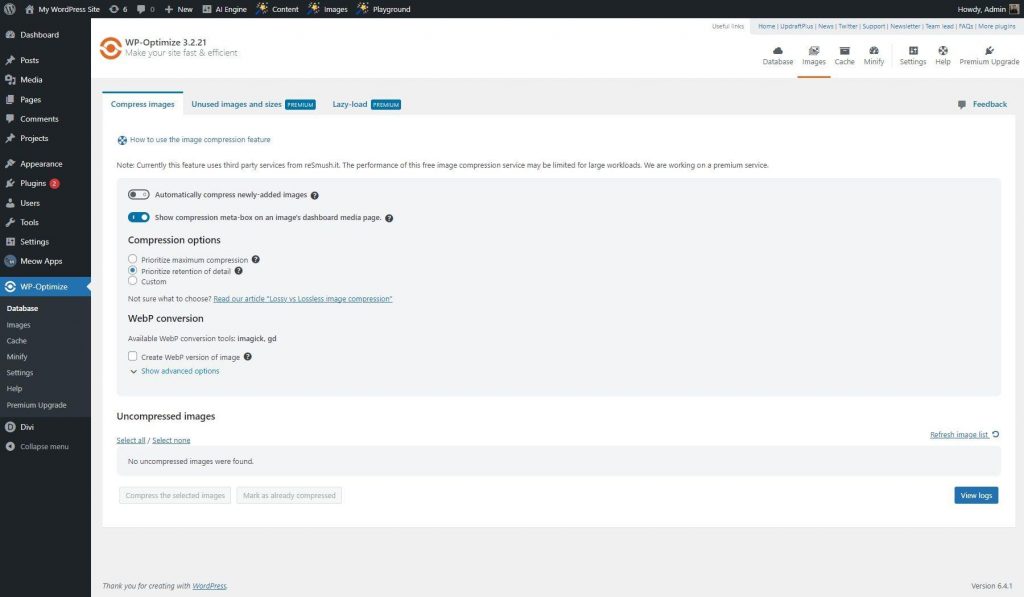
- Compress JPEG and PNG files
- Use modern formats such as WebP or AVIF
- Use responsive image sizes
- Avoid loading unnecessary images above the fold
- Lazy-load images that are below the initial viewport
However, be careful with lazy loading. Your main LCP image should generally be prioritized rather than unnecessarily lazy-loaded.
2. Use Page Caching and Browser Caching
Caching reduces the amount of work your server needs to perform for every visitor.
A page cache can store generated HTML and serve it directly instead of repeatedly executing WordPress PHP code and database queries. Browser caching allows visitors to reuse static resources such as CSS, JavaScript, and images.
Depending on your hosting environment, you can use a caching solution such as LiteSpeed Cache, WP Rocket, or another properly configured caching system.
The important part is configuration. Installing several caching plugins at the same time can create conflicts rather than improve performance.
3. Optimize Fonts
Fonts are often overlooked when optimizing WordPress websites.
Loading several font families with multiple weights can create unnecessary requests and increase the amount of CSS that browsers need to process.
✨ Font Optimization Tips:
- Use fewer font families
- Load only the required font weights
- Prefer modern font formats such as WOFF2
- Host fonts locally when appropriate
- Use
font-display: swap - Preload only critical fonts
Do not preload every font file. Preloading too many resources can compete with the assets that are actually important for LCP.
4. Remove Unnecessary Plugins
More plugins do not automatically mean a slower website, but unnecessary plugins often introduce additional CSS, JavaScript, database queries, or external requests.
Review your plugin list and ask:
Does this plugin provide functionality that my website actually needs?
If the answer is no, remove it.
Also check whether several plugins perform overlapping functions. For example, running multiple optimization plugins that each modify JavaScript, CSS, and caching can cause unexpected behavior.
One well-configured performance solution is usually better than stacking several overlapping optimization plugins.
5. Reduce JavaScript and CSS
Heavy JavaScript can affect INP because the browser’s main thread has to execute scripts before it can respond efficiently to user interactions.
✨ JavaScript & CSS Optimization Tips:
- Defer non-critical JavaScript
- Delay third-party scripts where possible
- Remove unused CSS
- Minify CSS and JavaScript
- Avoid loading plugin assets on pages where they are not needed
- Reduce unnecessary animations and large JavaScript libraries
Be especially careful with Elementor and other visual page builders. They can produce excellent designs, but complex pages with many widgets, animations, sliders, and third-party scripts can significantly increase page weight.
6. Improve Your Hosting and TTFB
Sometimes WordPress optimization cannot compensate for poor server performance.
Time to First Byte (TTFB) measures how quickly the server begins responding to a request. A slow server response delays everything that follows, including the rendering of important page content.
✨ Hosting Optimization Tips:
- Upgrade from low-cost shared hosting when necessary
- Use a server optimized for WordPress
- Enable server-side caching
- Use object caching such as Redis when appropriate
- Choose a hosting location close to your primary audience
- Use a CDN for static assets
If your server consistently responds slowly even when the page itself is lightweight, hosting should be investigated before adding more optimization plugins.
7. Prevent Layout Shifts
A fast page can still feel broken if elements move around while loading.
CLS problems commonly occur when images, advertisements, banners, fonts, or dynamically inserted elements do not have reserved space.
✨ CLS Optimization Tips:
- Define width and height for images
- Reserve space for banners and embeds
- Avoid inserting content above existing content
- Load fonts carefully
- Make sure sliders and dynamic sections have predictable dimensions
A stable page feels significantly faster because users can interact with it without elements jumping around.
Case Study: Optimizing a WordPress Theme
Consider a typical Elementor-based WordPress business theme.
Before optimization, the homepage might contain:
- A 2.5 MB hero image
- Six Google Font files
- Multiple animation libraries
- Three slider scripts
- 20+ active plugins
- No page cache
- Several third-party tracking scripts
The result could be an LCP above 4 seconds on mobile, noticeable layout shifts, and poor interaction responsiveness.
Instead of redesigning the website, optimize it systematically.
First, resize and convert the hero image to WebP or AVIF. Then preload the actual LCP image and remove unnecessary lazy loading.
Next, reduce font weights, remove unused plugin assets, enable full-page caching, defer non-critical JavaScript, and eliminate unnecessary animations.
Finally, improve the hosting environment and add a CDN if the audience is geographically distributed.
These numbers are illustrative rather than a guaranteed result. Actual improvements depend on the theme, hosting environment, plugins, content, and visitor devices.
The key lesson is that performance optimization should be based on measured bottlenecks rather than blindly applying every optimization setting.
Final Thoughts
Improving WordPress Core Web Vitals does not mean removing everything that makes your website attractive. The goal is to find the balance between design, functionality, and performance.
Start with the biggest problems first: optimize images, improve caching, reduce unnecessary plugins and scripts, optimize fonts, stabilize your layout, and make sure your hosting can handle your website.
If your main problem is LCP, focus specifically on the resources that determine when the largest visible element can render. If INP is poor, investigate JavaScript and long main-thread tasks. If CLS is the problem, look for elements that change size or position during loading.
Most importantly, measure before and after every major change.
A fast WordPress website is not necessarily the website with the highest PageSpeed score. It is the website that gives real users a fast, responsive, and stable experience.