A child theme is a small theme that sits on top of another theme, the parent. It inherits everything from the parent and lets you override only what you change. The point is simple: when the parent theme gets an update, your changes survive.
That makes child themes essential for some sites and pointless for others. This guide starts with that decision, then shows how to build a child theme from two small files, install it and check that it works. We built and tested the example on WordPress 7.1.2.
Do you actually need a child theme?
You need one if you plan to:
- Edit or add PHP template files (for example a custom
footer.phporsingle.php). - Add PHP snippets with
add_action()oradd_filter()that belong to the design, not to a plugin. - Override a theme’s template parts or WooCommerce templates.
- Add more than a few lines of custom CSS that you want to keep in version control.
You probably don’t need one if you:
- Only change colors, fonts, logos and layouts through the theme options, the Customizer or a page builder such as Elementor. Those settings are stored in the database, not in theme files, so a theme update doesn’t erase them.
- Add a few lines of CSS. Appearance › Customize › Additional CSS (classic themes) or the Styles panel in the Site Editor (block themes) keeps them outside the theme files.
- Add site-wide functionality such as custom post types or tracking codes. Those belong in a plugin, often a small site-specific one, so they keep working even if you change themes.
If you are unsure, create one early. Switching from a parent theme to a child theme later means re-checking theme options and menu locations, because some settings are stored per theme.
Many premium themes ship a ready-made child theme in the download package (look for a file such as theme-name-child.zip). If yours does, use it instead of building your own. Several SH Themes product pages list “Child Theme Included” among their features.
How a child theme works
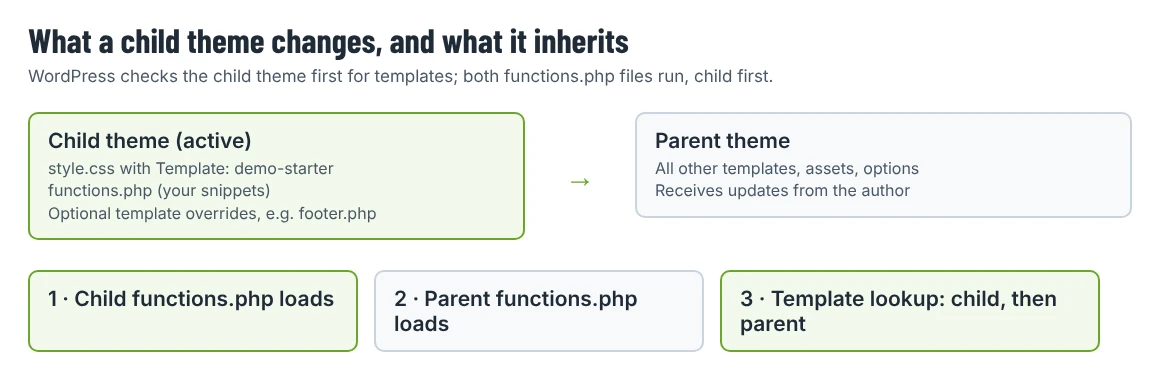
- The child theme’s
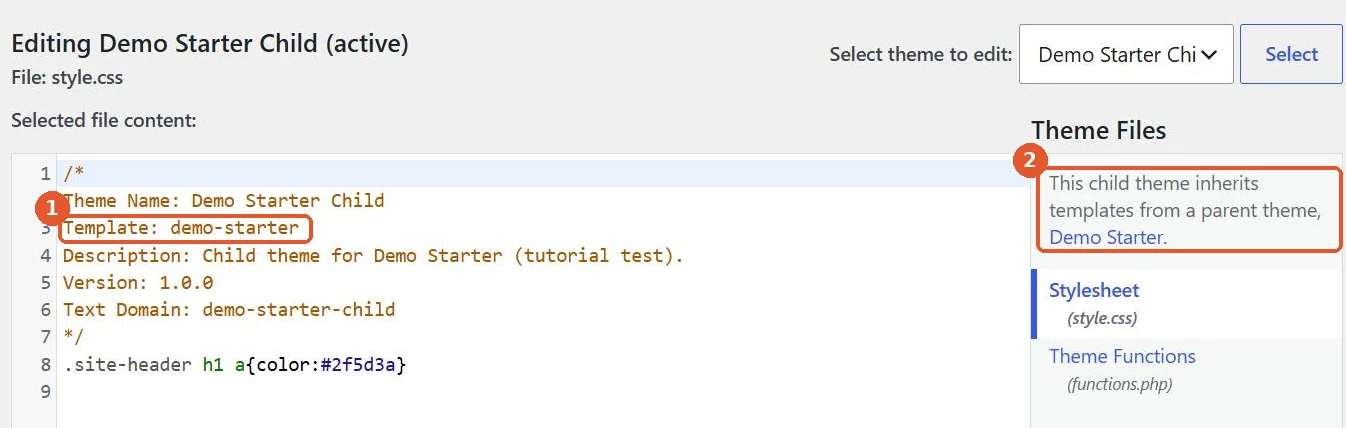
style.cssnames the parent in its Template header. - When WordPress looks for a template file, it checks the child theme first and falls back to the parent.
- Both
functions.phpfiles run. The child theme’s file loads first, then the parent’s. Don’t copy the parent’sfunctions.phpinto the child; duplicated functions cause a fatal error.
Step 1: Find the parent theme’s folder name
The child theme refers to the parent by its folder name, not by its display name. Find it in wp-content/themes/ with SFTP or your host’s file manager, or look at the theme’s ZIP: the folder inside it is the folder name. For example, a theme displayed as “Demo Starter” lives in the folder demo-starter.
Step 2: Create the child theme folder and style.css
On your computer, create a folder named after the parent with -child added (for example demo-starter-child). Inside it, create style.css:
/*
Theme Name: Demo Starter Child
Template: demo-starter
Description: Child theme for Demo Starter.
Version: 1.0.0
Text Domain: demo-starter-child
*/

/* Your custom CSS goes below this line */
Only two lines are required: Theme Name and Template. The Template value must match the parent folder name exactly, including letter case.
Step 3: Load the parent and child stylesheets
Create functions.php in the same folder:
<?php
add_action( 'wp_enqueue_scripts', function () {
    wp_enqueue_style(
        'demo-starter-parent',
        get_parent_theme_file_uri( 'style.css' )
    );
    wp_enqueue_style(
        'demo-starter-child',
        get_stylesheet_uri(),
        array( 'demo-starter-parent' ),
        wp_get_theme()->get( 'Version' )
    );
} );
The first call loads the parent’s stylesheet, the second loads the child’s and tells WordPress it depends on the parent’s, so your CSS comes last and wins when rules conflict. The version argument helps browsers pick up changes after you edit the file.
Check your parent theme first: some themes already load their stylesheet in a way that also works for child themes, and some premium themes document a specific snippet. If the theme documentation provides one, follow it. Avoid the old @import method in CSS; it loads stylesheets one after another and slows the page down.
Block themes work a little differently. A child of a block theme can be just style.css plus an optional theme.json, and you override templates by adding files to the child’s templates/ or parts/ folders. Global styles you set in the Site Editor are stored in the database and sit above the theme’s theme.json.
Optional: add a screenshot.png (1200 × 900 pixels is the recommended size) so the child theme is easy to recognize on the Themes screen.
Step 4: Zip, upload and activate
- Compress the folder
demo-starter-child, so the ZIP contains one folder withstyle.cssinside it. (If the ZIP structure is wrong, WordPress shows the “missing style.css stylesheet” error; our guide to that error explains the fix.) - Make sure the parent theme is installed. It doesn’t need to be active.
- Go to Appearance › Themes › Add Theme › Upload Theme, upload the child ZIP and activate it.
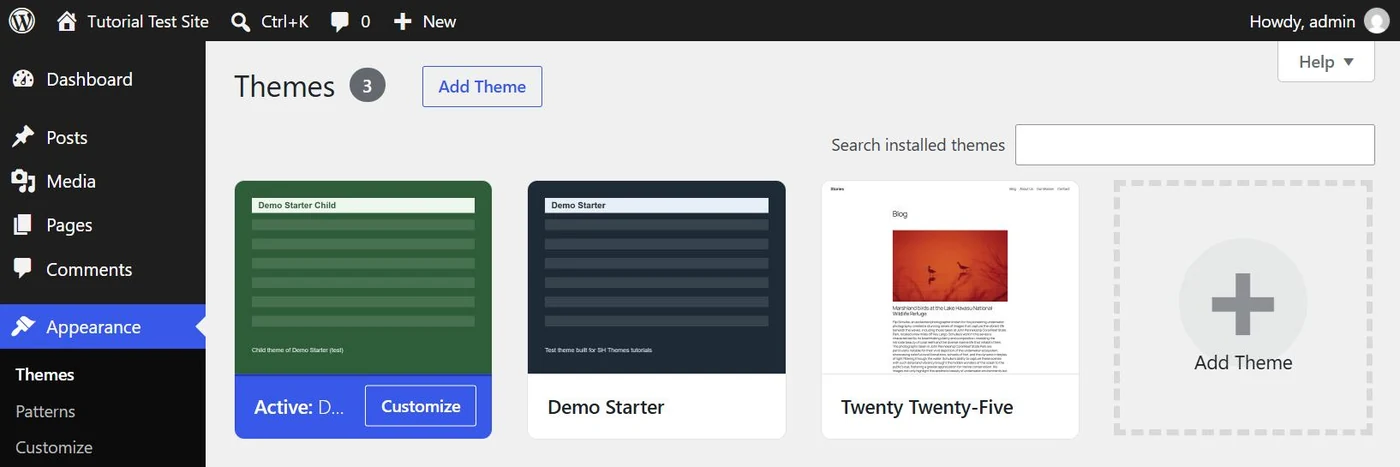
Open the child theme’s details to confirm WordPress recognized the relationship:
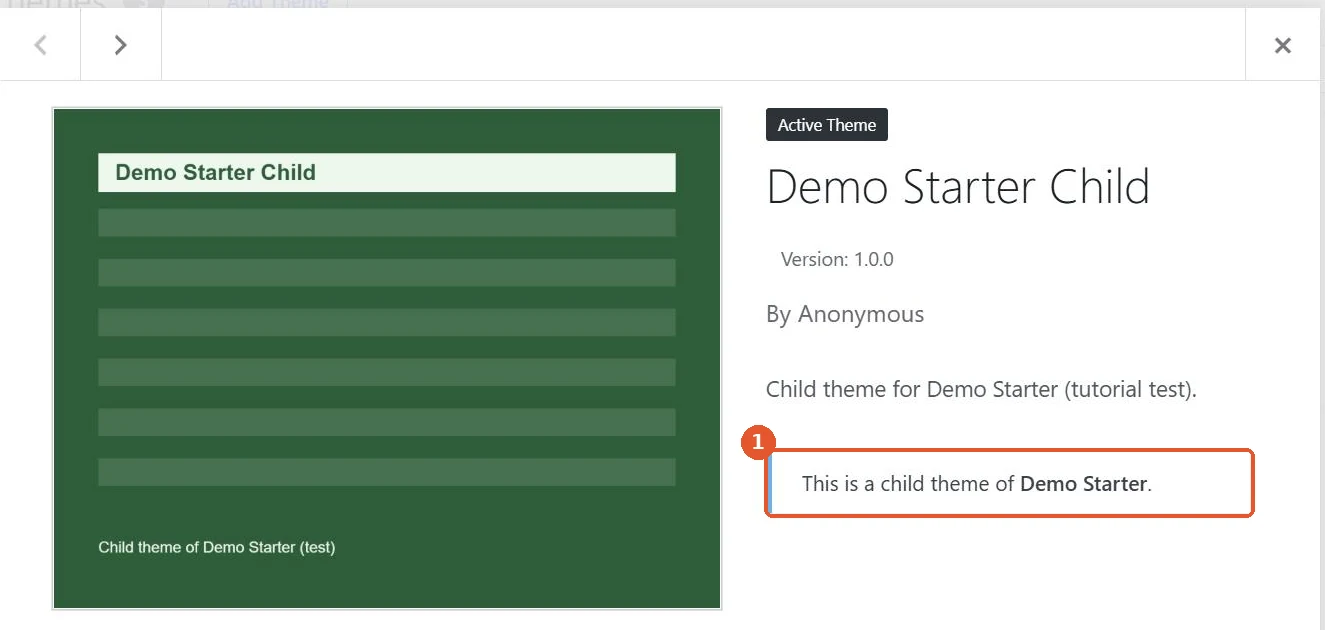
If you see “The parent theme is missing” instead, the Template line doesn’t match the parent folder name, or the parent isn’t installed.
Step 5: Check settings after activation
Activating a child theme can make the site look different at first, even with no custom code. The usual reasons:
- Menu locations are empty. Go to Appearance › Menus › Manage Locations and assign your menus again.
- Customizer settings are missing. Some classic themes store their options per theme. Many premium themes include an export/import tool in their options panel; export from the parent before switching, import into the child after.
- Widgets moved. Check Appearance › Widgets if your theme uses widget areas.
Page builder content (for example Elementor layouts) is stored with each page and should be unaffected.
Where to put your changes
- CSS: in the child theme’s
style.css, below the header. - PHP snippets: in the child theme’s
functions.php, wrapped in your own function names or closures so they never clash with the parent. - Template overrides: copy the single parent template you want to change into the same relative path in the child theme, then edit the copy. Copy only the files you change.
You can view the child theme’s files in Appearance › Theme File Editor, and WordPress shows which parent it inherits from:
Before it opens the editor, WordPress warns you that editing theme files from the dashboard is risky:
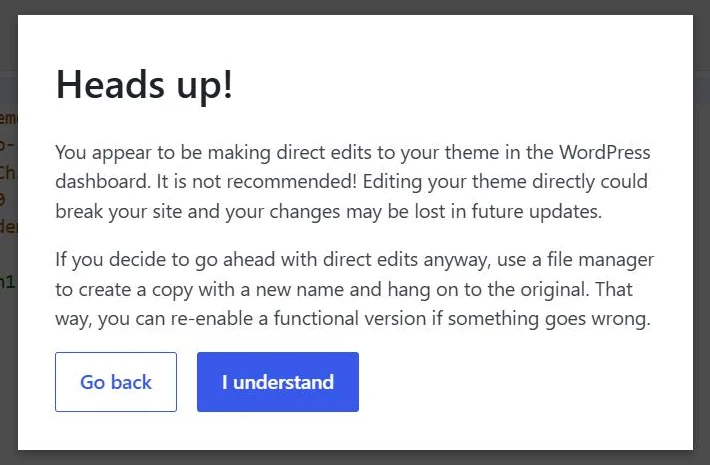
Take that seriously. A typo in functions.php can take the site down; our guide to the “critical error” message explains how to recover if that happens. Edit files on your computer or a staging site, then upload them. On live sites, many administrators disable the editor completely by adding define( 'DISALLOW_FILE_EDIT', true ); to wp-config.php.
Keeping the child theme healthy
- Re-check overrides after parent updates. If the parent changes a template you have overridden, your copy doesn’t get the fix. Read the changelog and compare the files you copied.
- Keep the child theme in a backup or a Git repository. It is small, and it holds all your work.
- Don’t rename the parent theme folder. The child theme depends on the exact name.
Common problems and fixes
| Symptom | Likely cause | Fix |
|---|---|---|
| “The parent theme is missing” | Template header doesn’t match the parent folder | Correct the folder name in Template: |
| Site looks unstyled | Parent stylesheet not loaded | Add or correct the enqueue code in Step 3 |
| CSS changes don’t show | Browser or page cache | Bump the child theme’s Version, clear caches |
| Fatal error after activating | Duplicate function copied from the parent | Remove copied functions from the child’s functions.php |
| Menus or logo disappeared | Theme options stored per theme | Re-assign menus, re-import theme options |
Building on a premium theme? Check its product page and documentation for an included child theme first. Most SH Themes products list Elementor as their page builder, so many design changes never need a child theme at all; keep it for the PHP and template work that does.