You uploaded a theme ZIP, clicked Install Now, and WordPress stopped with this message:
The package could not be installed. The theme is missing the style.css stylesheet.
In most cases the theme itself is fine. The ZIP you uploaded just doesn’t have the shape WordPress expects. This guide shows how to find the right file, check it in under a minute, and fix the less common cases where the ZIP really is broken.
We reproduced the error on a test site running WordPress 7.1.2 so the screenshots below show exactly what you will see.
What the error actually means
When you upload a theme, WordPress unzips the file and looks for a theme folder that contains a file called style.css. That file starts with a comment block (the theme header) where the theme declares its name, version and other details. If WordPress can’t find style.css where it expects it, it refuses to install anything and shows the error above.
There are three usual causes:
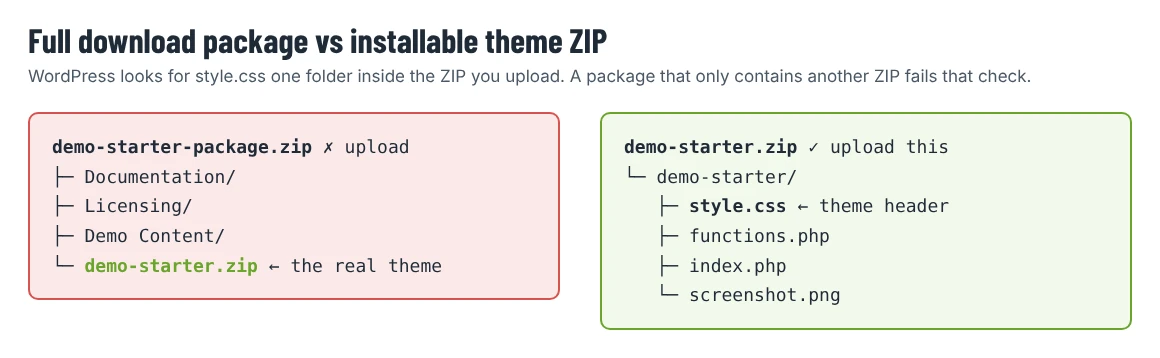
- You uploaded the full download package, not the installable theme. Premium themes are often delivered as one big ZIP that contains documentation, license files, demo content and, somewhere inside, the actual theme ZIP.
- The ZIP has an extra folder level, for example
my-theme-v2/my-theme/style.css. This often happens when a ZIP is unpacked and re-zipped on a computer. - The file is not a theme at all: a plugin ZIP, an HTML template, a design file kit, or a corrupted download.
Before you start
You need:
- An administrator account on the site.
- The ZIP file you downloaded from the theme seller (for SH Themes, from your account or the product page).
- A way to open ZIP files on your computer (built into Windows and macOS).
- A recent backup if you are installing on a live site. If you have not done this before, read our guide on installing a WordPress theme without breaking your site first.
Step 1: Look inside the ZIP before uploading it
Open the downloaded ZIP on your computer (don’t upload it yet) and look at the first level of folders.
- If you see folders such as Documentation, Licensing or Demo Content, plus another
.zipfile, you have the full package. The file you need is the inner ZIP, usually named after the theme (for exampletheme-name.zip). - If you see a single folder named after the theme, open it. If
style.cssis right there, together with files likefunctions.phpandindex.php, the ZIP is ready to install. - If you see
style.csstwo or more folders down, the ZIP has an extra level. Go to Step 3.
Some packages also include a separate child theme ZIP (often theme-name-child.zip). Install the parent theme first; the child theme depends on it.
Step 2: Upload the installable theme ZIP
In your dashboard go to Appearance › Themes › Add Theme, then click Upload Theme. Choose the inner theme ZIP, not the package, and click Install Now.
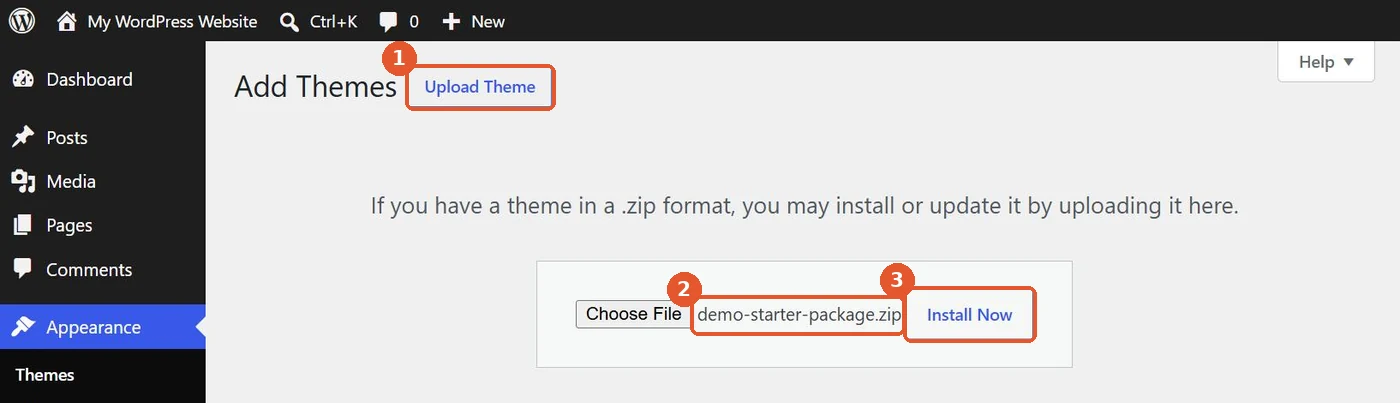
If you uploaded the package by mistake, WordPress unpacks it, finds no stylesheet at the expected level and stops:
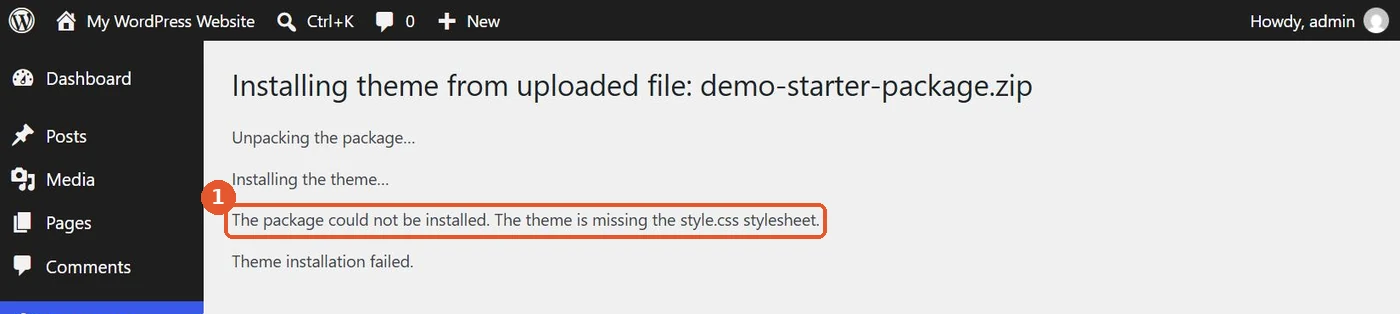
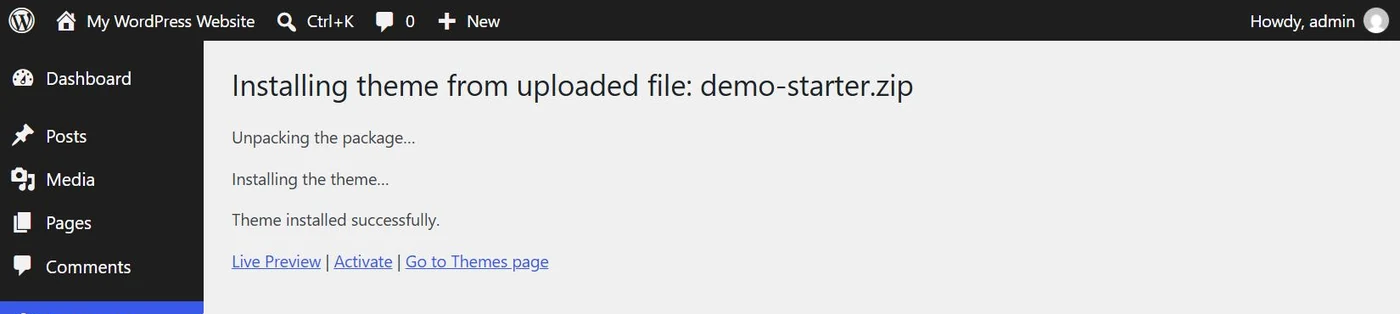
Nothing was installed, so there is nothing to clean up. Go back to Add Theme and upload the correct file. When the structure is right, the result screen ends with Theme installed successfully, followed by links to preview or activate the theme:
Don’t activate it straight away on a live site. Check the theme’s documentation for required plugins first, and if you plan to change templates or add PHP code later, set up a child theme (we cover that in our child theme guide).
Step 3: Fix a ZIP that has an extra folder level
If you re-zipped the theme yourself, or a download tool added a wrapper folder, rebuild the ZIP so the theme folder sits at the top:
- Extract the ZIP to a folder on your computer.
- Open folders until you reach the one that directly contains
style.css. - Compress that folder (not its parent, and not just the files inside it).
- Upload the new ZIP.
On macOS, right-click the folder and choose Compress. On Windows, right-click the folder and choose Compress to ZIP file (the exact wording depends on your Windows version).
A quick check: when you open your new ZIP, the first thing you see should be one folder with the theme’s name, and style.css should be inside that folder.
Step 4: Check the stylesheet header
If the structure is right but installation still fails, open style.css in a text editor and look at the comment at the top. The only field WordPress strictly requires in this header is Theme Name, but a well-built theme usually declares more:
/*
Theme Name: Demo Starter
Author: Your theme author
Version: 1.0.0
Requires at least: 6.5
Requires PHP: 7.4
Text Domain: demo-starter
*/
A missing or damaged header produces a different message: “The style.css stylesheet does not contain a valid theme header.” That usually means the file was edited by mistake or the download is incomplete. Download a fresh copy from the seller rather than repairing the header by hand.
Other upload errors that look similar
These messages appear on the same screen and are easy to confuse with the stylesheet error. The exact wording below comes from WordPress 7.1.2.
| Message | What it usually means | What to do |
|---|---|---|
| The theme is missing the style.css stylesheet. | Wrong file or extra folder level | Upload the inner theme ZIP or rebuild the ZIP (Steps 1–3) |
| The style.css stylesheet does not contain a valid theme header. | Damaged or edited style.css |
Re-download the theme |
| Template is missing. Standalone themes need to have a templates/index.html or index.php template file… | Incomplete theme, or a child theme without a Template header |
Re-download; for child themes check the header |
| The PHP version on your server is X, however the uploaded theme requires Y. | Hosting runs an older PHP version | Ask your host to upgrade PHP; WordPress recommends PHP 8.3 or later |
| The uploaded file exceeds the upload_max_filesize directive in php.ini. | Server upload limit is lower than the ZIP size | Raise the limit with your host, or upload the theme folder via SFTP |
| Incompatible Archive. | The file is not a valid ZIP or is corrupted | Download it again; don’t rename .rar or .7z files to .zip |
| Destination folder already exists. | A theme with the same folder name is installed | WordPress shows a comparison screen and offers to replace the installed version; only continue if you meant to update |
When to install over SFTP instead
If the dashboard upload keeps failing because of server limits, you can install the theme manually:
- Extract the installable theme ZIP on your computer.
- Connect to your site with SFTP (or your host’s file manager).
- Upload the theme folder to
wp-content/themes/. - Go to Appearance › Themes. The theme appears in the list and you can activate it there.
Use the same check as before: the folder you upload must contain style.css directly.
Common mistakes to avoid
- Uploading a plugin ZIP on the theme screen. Required plugins that ship with a theme go to Plugins › Add Plugin › Upload Plugin, or are installed by the theme’s own setup screen after activation.
- Uploading the HTML version of a template. Some items are sold as HTML templates or design kits. They can look like WordPress themes in previews but can’t be installed in WordPress. Our comparison of UI kits, website templates and WordPress themes explains the difference.
- Renaming the theme folder. Changing the folder name can break child themes that point to the parent, and it can stop updates from matching the installed theme.
- Editing files inside the package before uploading. If you need changes, make them after installation in a child theme.
Quick checklist
- I extracted the download and found the inner theme ZIP.
- Opening the theme ZIP shows one folder, and
style.cssis inside it. - I installed the parent theme before any child theme.
- I checked the theme’s required PHP and WordPress versions against my hosting.
If you are installing an SH Themes theme
SH Themes product pages list this exact error under Support › Popular question for this item, with the same fix: extract the downloaded package first and upload the theme ZIP inside it. If you have followed the steps above and the error persists, contact the author from the product page’s support form and mention the file name you uploaded.
Want to practice on a free theme first? The SH Themes free WordPress themes are a safe way to try the upload flow before you install a premium package on a client site.