You updated a plugin, activated a new theme or pasted a snippet into functions.php, and now the site shows a single line of text:
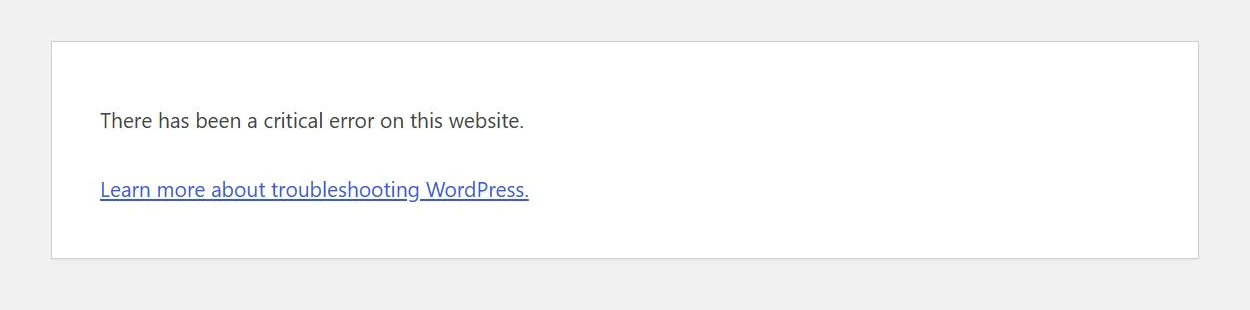
There has been a critical error on this website.
This is WordPress’s way of saying that PHP hit a fatal error and stopped. Since WordPress 5.2, instead of an empty white page, it shows this message and, where it can, emails the site administrator a link to recovery mode. Your content is almost always still in the database. The job is to find the code that failed and take it out of the way.
We triggered this error on a WordPress 7.1.2 test site by activating a copy of a theme with a deliberate PHP error, so the screenshots below show the real messages.
Step 1: Check the admin email for the recovery link
When WordPress catches a fatal error, it tries to send an email to the site’s administration email address. The message names the plugin or theme that caused the error and contains a special link. If you are logged in, the admin area shows a version of the error that points you to that email:
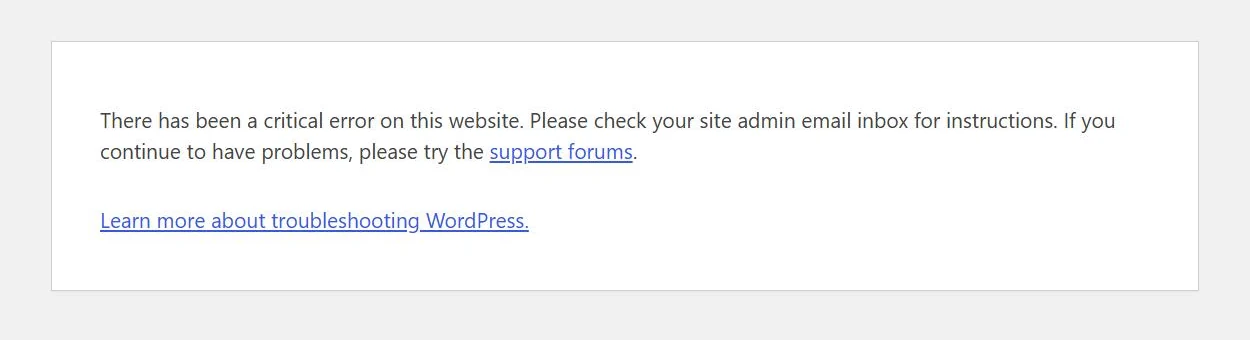
Click the link in the email and log in. Recovery mode pauses the faulty plugin or theme for your session only, so you can reach the dashboard while visitors still see the error. From there:
- Read the admin notice: it lists what was paused and the error message.
- Deactivate the plugin, or switch to another theme.
- Click Exit Recovery Mode in the admin bar.
If the email doesn’t arrive, check the spam folder and the address under Settings › General (if you can still reach it). Sites whose email delivery isn’t configured often never send it; in that case, continue with Step 2.
Step 2: Undo the last change without the dashboard
If you know what you changed last, reverse it directly in the files. You need SFTP access or your host’s file manager.
A plugin caused it: open wp-content/plugins/ and rename the plugin’s folder, for example from some-plugin to some-plugin-off. WordPress can no longer find the plugin and deactivates it. Reload the site.
A theme caused it: open wp-content/themes/ and rename the active theme’s folder. WordPress falls back to a default theme if one is installed:

This is one reason to keep a default theme such as Twenty Twenty-Five installed even if you never use it.
A code snippet caused it: open the file you edited (often the child theme’s functions.php), remove or fix the snippet, and upload the file again. If you edited the file in the dashboard, the theme editor is no longer reachable; use SFTP.
Once the site loads, rename the folder back only after you have fixed or updated the plugin or theme. Renaming it back unchanged brings the error back.
Step 3: Read the actual error
If you don’t know what caused the error, turn on logging. In wp-config.php, find the existing WP_DEBUG line (or add one above the line that says to stop editing) and set:
define( 'WP_DEBUG', true );
define( 'WP_DEBUG_LOG', true );
define( 'WP_DEBUG_DISPLAY', false );
@ini_set( 'display_errors', 0 );
This writes errors to wp-content/debug.log without showing them to visitors. Load the broken page once, then open the log. The last “PHP Fatal error” line tells you the file and line number, which usually reveals the plugin or theme folder involved. For a theme that calls a function that doesn’t exist, like our test theme, the entry has this form (path shortened):
PHP Fatal error: Uncaught Error: Call to undefined function demo_starter_missing_function()
in /wp-content/themes/demo-starter-broken/functions.php:3
The path points straight at the theme folder to rename.
Switch logging off when you are done. Delete the log file as well; it can expose server paths and other details. WordPress’s own Site Health screen flags an error log that may be publicly reachable as a critical issue.
Step 4: Fix or replace the extension
Common causes and what to do:
| Cause | Typical clue in the log | Fix |
|---|---|---|
| Plugin or theme too new for your PHP version | Syntax errors, or errors mentioning a PHP feature | Ask your host to upgrade PHP (WordPress recommends 8.3+), or roll back the extension |
| PHP too new for an old plugin or theme | “Call to undefined function” for removed PHP functions | Update the extension, or replace it if it is abandoned |
| Two plugins or a plugin and the theme declaring the same function | “Cannot redeclare …” | Remove the duplicate code, usually from a child theme |
| Incomplete update | “Failed opening required … No such file” | Re-upload a fresh copy of the plugin or theme |
| Out of memory | “Allowed memory size of … bytes exhausted” | Ask the host for more PHP memory; check for a plugin loading too much |
If the problem started right after a theme update, you can roll back by uploading the previous version’s ZIP from Appearance › Themes › Add Theme › Upload Theme once the dashboard works again. Our guide to updating premium themes explains the comparison screen WordPress shows when you do that.
Step 5: Test, then clean up
- Load the homepage, a post, a page built with your page builder and, for shops, the checkout.
- Turn debug logging back off and delete
debug.log. - Re-activate anything you deactivated, one item at a time, checking the site after each.
- Check Tools › Site Health for new warnings.
When to restore from a backup
Restore a backup if the error appeared after several changes and you can’t tell which one caused it, if files are missing or corrupted, or if you suspect the site was compromised. Restore to staging first if you can, so you don’t overwrite orders, comments or form entries received since the backup.
How to avoid it next time
- Update on a staging site first, especially themes and plugins with big version jumps.
- Keep code snippets in a child theme or a site-specific plugin, never in the parent theme. Our child theme guide shows how.
- Disable the dashboard file editor with
define( 'DISALLOW_FILE_EDIT', true );so a typo can’t be saved straight to the live site. - Make sure the administration email is a monitored mailbox, so recovery links reach someone.
- Keep one default WordPress theme installed as a fallback.
Getting help from a theme or plugin author
Authors can help much faster with precise information. Send:
- The full “PHP Fatal error” line from the log.
- Your WordPress and PHP versions (from Tools › Site Health › Info).
- What changed just before the error.
- The list of active plugins.
Shtheme buyers can send this through the support form on the theme’s product page. For errors that appear while installing a theme rather than after activating it, see our guide to the “missing style.css stylesheet” error, and for import problems, the demo import guide.