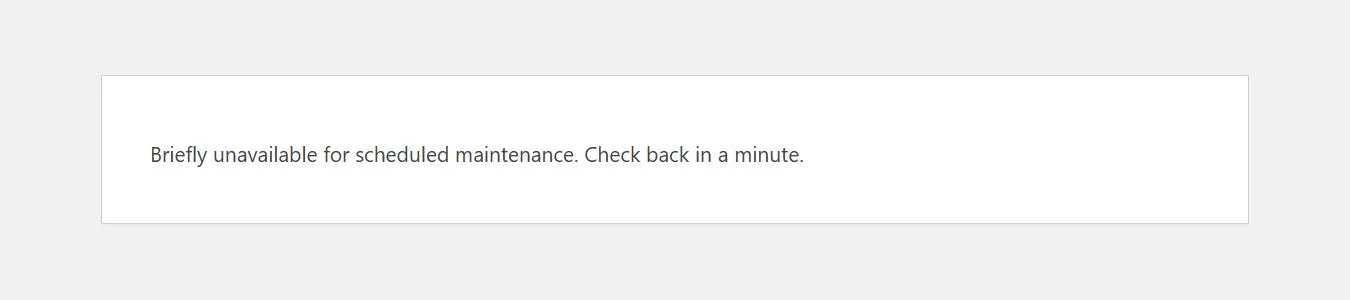
You clicked Update on a plugin, theme or WordPress itself, something interrupted the process, and now every page shows one line of text:
Briefly unavailable for scheduled maintenance. Check back in a minute.
Nothing is broken in your content. WordPress put the site into maintenance mode while it replaced files, and it never got the signal to switch it off. This guide explains what is happening and how to get the site back, usually in under five minutes.
What causes the message
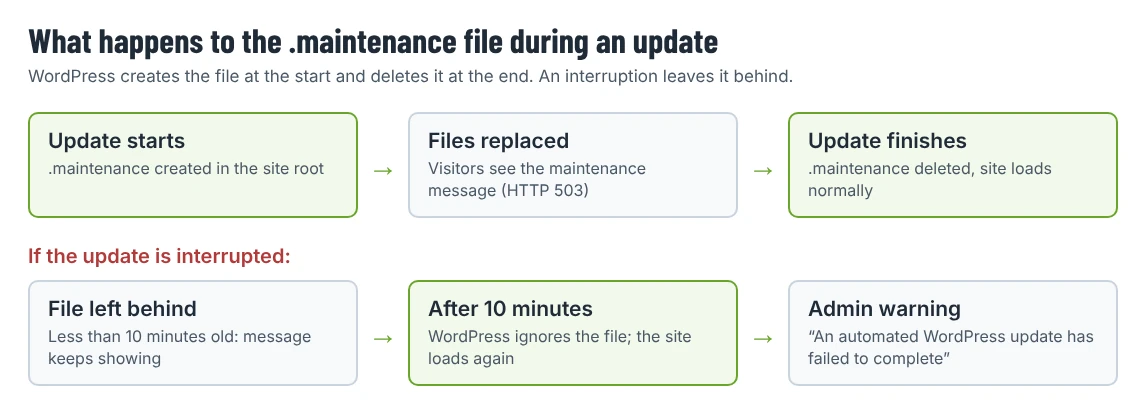
When WordPress updates core files, plugins or themes, it creates a small file called .maintenance in the site’s root folder (the folder that contains wp-config.php). The file records the time the update started. While the file exists and is less than 10 minutes old, WordPress answers every request with the maintenance message and an HTTP 503 status (“service unavailable”, which tells search engines to come back later).
When the update finishes, WordPress deletes the file. If the update is interrupted (the browser tab is closed, the server times out, you start a second update while the first is still running), the file stays behind.
Two details from WordPress’s own code are useful here:
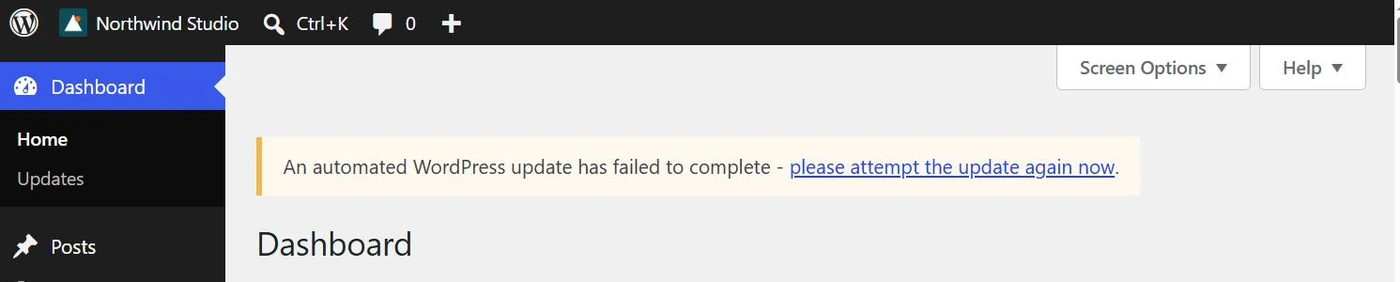
- Maintenance mode switches itself off after 10 minutes. Once the timestamp in
.maintenanceis older than that, WordPress ignores it and the site loads again. - A leftover file still causes a warning. After those 10 minutes, administrators see “An automated WordPress update has failed to complete – please attempt the update again now” at the top of the dashboard. That notice is the same leftover file, not a new problem.
So if the message has been showing for only a few minutes, waiting is a legitimate first step. If it has been longer, or you can’t wait, remove the file.
Step 1: Wait a few minutes and reload
If the update was started less than ten minutes ago, it may still be running. Wait, then reload the page in a private window to avoid cached copies. Don’t start the update again yet; running two updates at once is a common cause of this problem in the first place.
Step 2: Delete the .maintenance file
You need access to your site’s files through your host’s file manager or an SFTP client.
- Open the root folder of the WordPress installation, often
public_html,wwworhtdocs. - Turn on Show hidden files (sometimes called “dotfiles”). The file name starts with a dot, so many file managers hide it by default.
- Find
.maintenanceand delete it. Don’t delete anything else. - Reload the site.
If your host offers WP-CLI, wp maintenance-mode deactivate does the same thing from the command line.
Step 3: Finish the update that was interrupted
Removing the file brings the site back, but the update itself may be half-done. Go to Dashboard › Updates and to the Plugins and Themes screens:
- If an update is still listed, run it again, one item at a time.
- If WordPress core was being updated, run the core update again from Dashboard › Updates; that’s what the “please attempt the update again now” link in the notice does.
- Then load a few pages, including the homepage, a post and any page built with your page builder.
If the site shows an error after the message disappears
An interrupted update can leave a plugin or theme with some old files and some new ones. That can produce “There has been a critical error on this website” or a blank page. In that case:
- Reinstall the affected plugin or theme from a fresh copy. For a premium theme, upload the latest ZIP as described in our guide to updating a premium theme.
- If you can’t reach the dashboard, follow the steps in our critical error recovery guide, which covers renaming plugin folders and reading the error log.
How to avoid it next time
- Update one thing at a time, and wait for the confirmation message before clicking the next Update button. Bulk updates are convenient, but if one item stalls, everything waits.
- Keep the tab open until WordPress says the update is complete.
- Back up before larger updates, especially premium themes and page builders. Our backup and restore guide shows how.
- Test big updates on a staging copy first. We explain the options in our staging site guide.
- Check your hosting limits. Updates that time out repeatedly often point to a low PHP execution time or memory limit. Tools › Site Health › Info › Server shows the current values.
Want a custom maintenance page?
WordPress also supports a custom page for this state: if a file named maintenance.php exists inside wp-content, WordPress shows it instead of the default line of text during maintenance mode. A simple branded page with your logo and phone number is friendlier for visitors who arrive during an update. Keep it plain HTML and CSS; it loads before plugins and themes, so it can’t use them.
Maintenance mode is a safety feature: it stops visitors from loading pages while files are half replaced. The message only becomes a problem when the update that created it never finishes, and now you know where to look.